Install and activate Spark Speed
This guide is for anyone who just bought Spark Speed and wants to put it on a WordPress site. After these steps the page cache is running, Spark Speed recognises your builder and shop, and updates arrive automatically. You need an administrator account in WordPress, the zip file and your licence key.
In short
- Installing works like any plugin: upload and activate
- Without a valid licence Spark Speed does nothing new; an existing cache keeps working
- After activation the page cache and the cache build start by themselves
- Signed updates come from the SparkCore shop as long as your licence is valid
Before you start
Have the following ready. On an existing site, make a backup first, or try it on a test copy if your hosting offers one.
- A WordPress account with the Administrator role
- The Spark Speed zip file, downloadable from your SparkCore shop account
- Your licence key from the purchase email or your shop account. Do not share it and keep it out of screenshots and tickets.
- Already using another cache plugin? First read the article about Spark Speed alongside another cache plugin in the knowledge base.
Step 1: upload the plugin
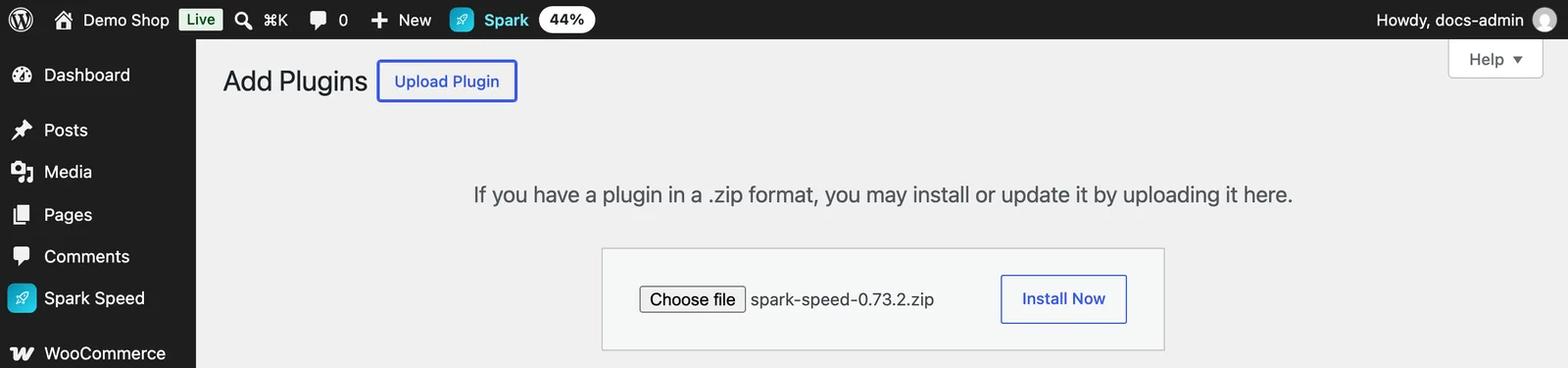
In WordPress, go to Plugins, Add Plugin and click Upload Plugin at the top. Choose the zip file and click Install Now.
Step 2: activate
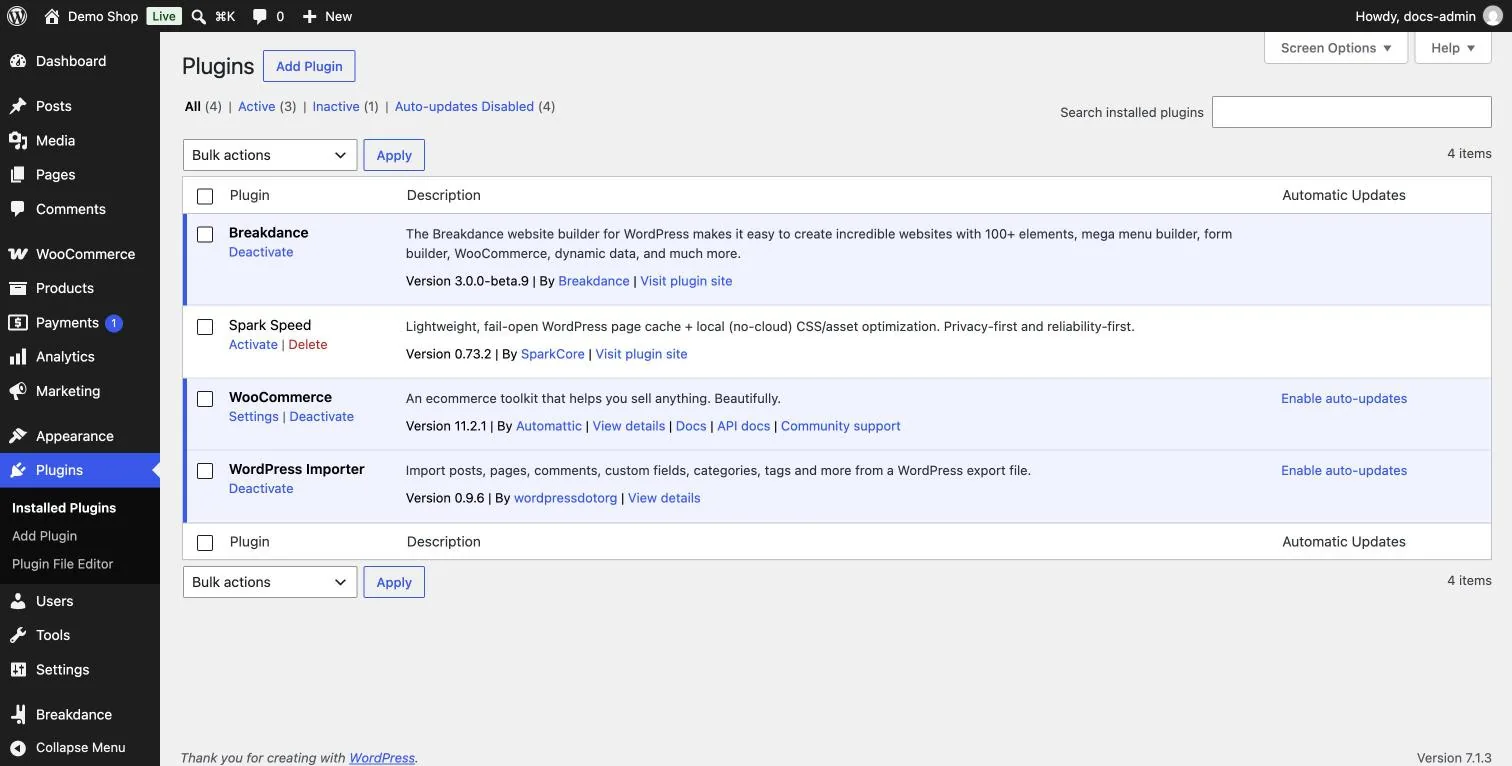
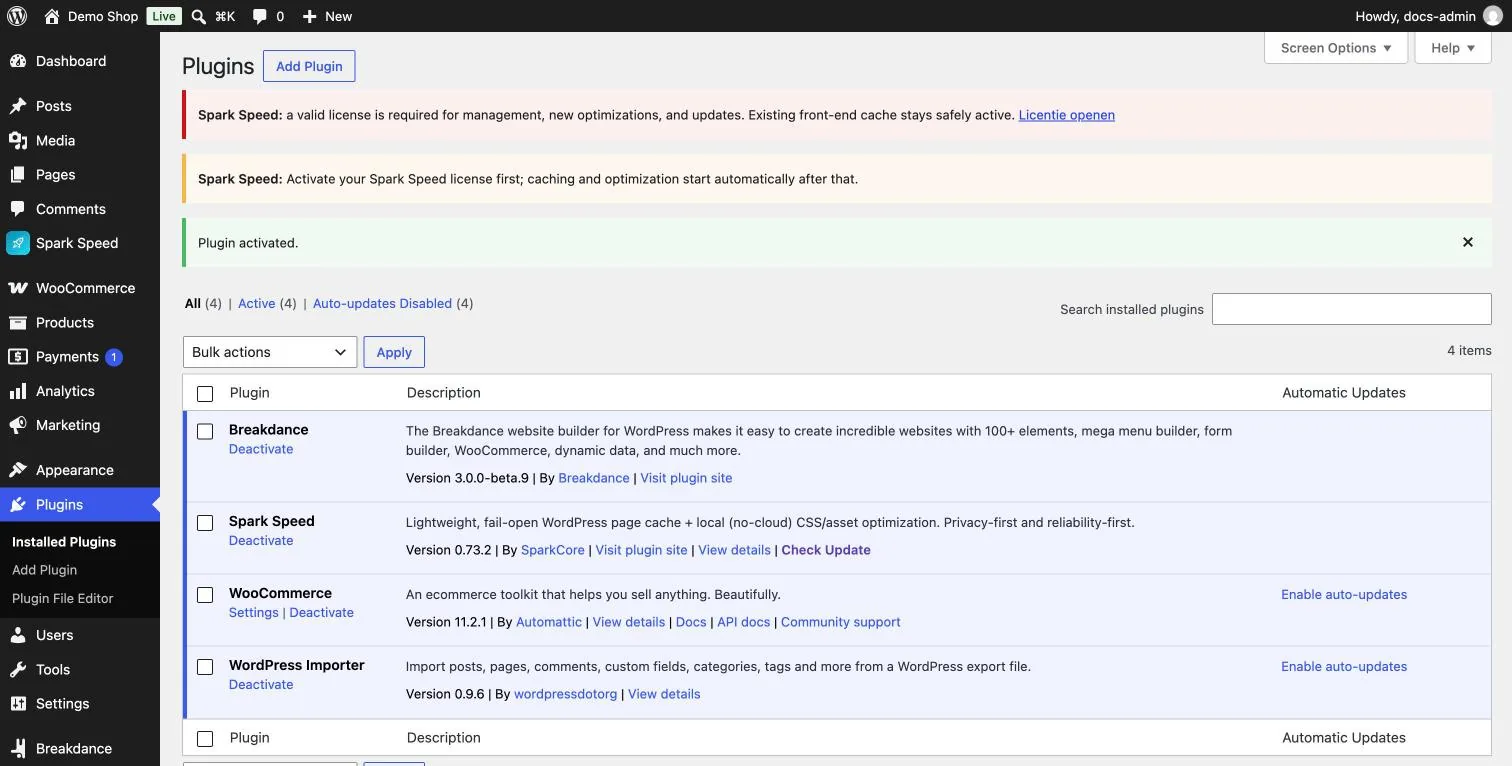
After installation Spark Speed is in your plugin list with the Activate link. Click it.
Step 3: activate your licence
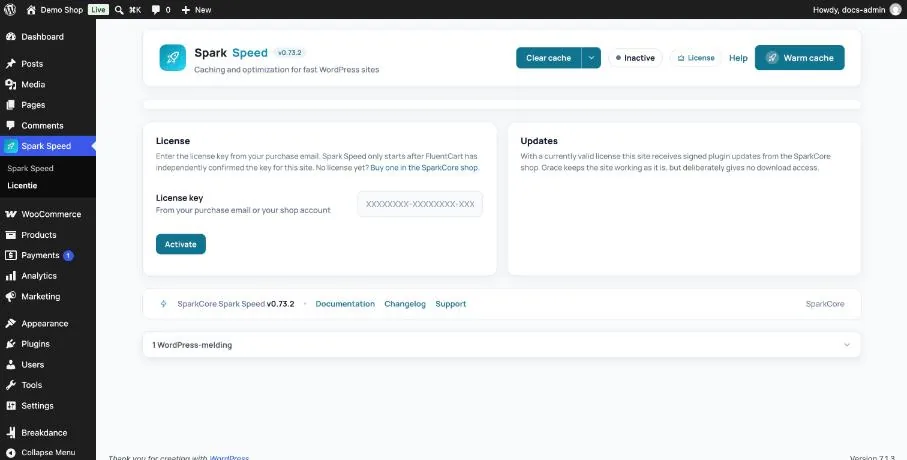
Click Spark Speed in the menu. As long as there is no licence, the license screen opens. Paste your key into the License key field and click Activate. The shop checks the key for this site; after that Spark Speed starts working by itself.
Does an activation count towards your licence? Yes, every site where you activate the key counts as one activation. Your plan shows how many sites your licence allows.
What you see next
After activation the Overview opens. At the top right you see Active and License active. Spark Speed recognises your builder and shop (on the test site: Breakdance and WooCommerce), switches on the page cache and starts caching your site's pages in the background.
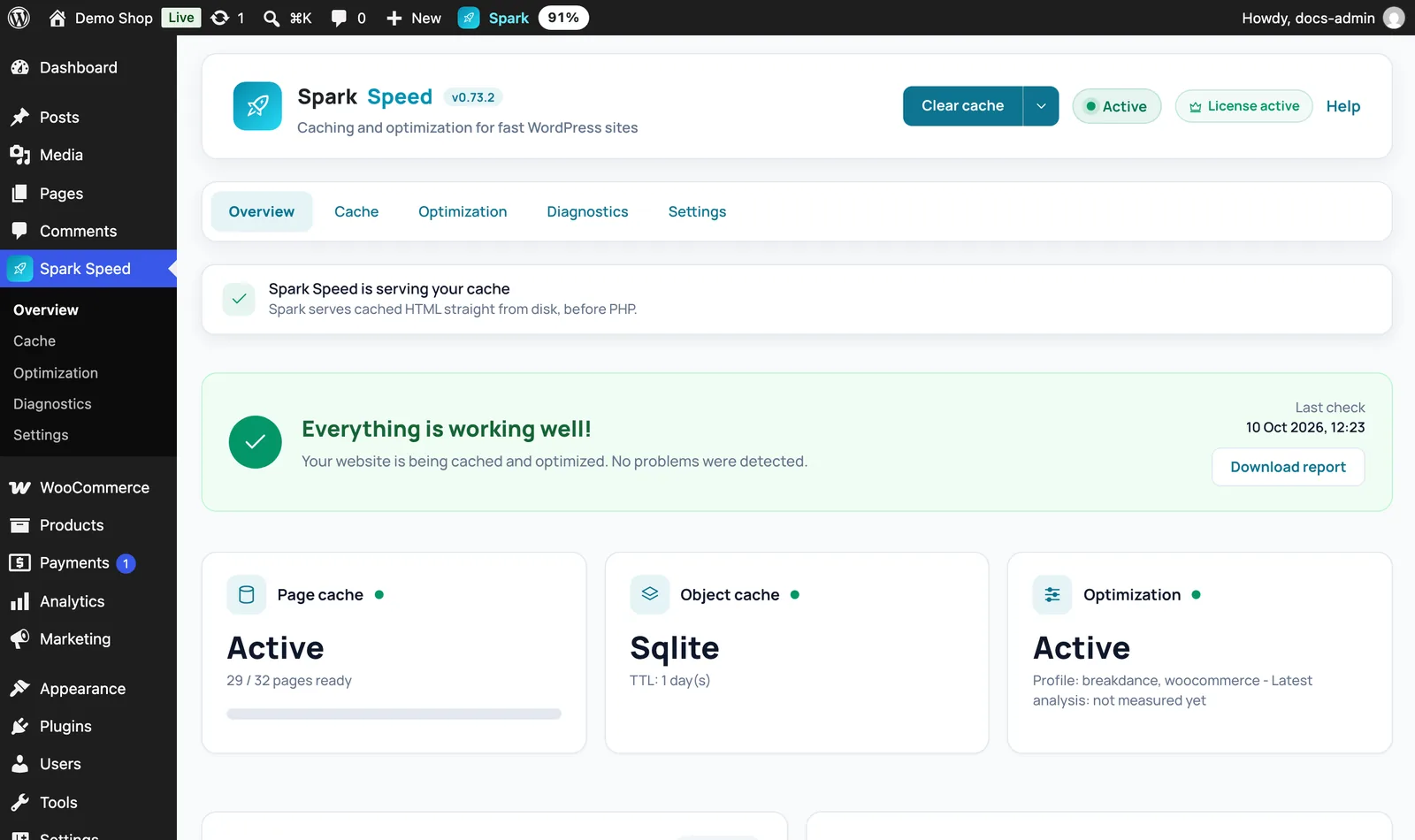
Expected result: the Page cache card reads Active and the number of ready pages goes up. Then check your site in a private window: pages load normally, menu and forms work.
Does the cache build stall with a message such as Blocked by the site? Then your site cannot reach itself. On Cache, Cache build click Resume warmer; if that does not help, it is usually the hosting. See Troubleshooting.
Updates
With a valid licence your site receives signed updates from the SparkCore shop. They appear like any WordPress update in your plugin list and under Dashboard, Updates; Check Update in the plugin row requests a new check right away. If your licence expires, the site keeps working as it is, but no new downloads arrive.
How to undo
If you no longer want to use Spark Speed, deactivate the plugin from Plugins. Your site then works without the Spark Speed cache again. To use the licence on another site, first deactivate it in Spark Speed under Settings, License.
Unsure about a step? Revert, check your site and ask us through the contact page.
No Spark Speed yet? See what it does and what it costs.
Frequently asked questions
A cache that already existed stays safely active, but management, new optimizations and updates need a valid licence.
In your SparkCore shop account and in the purchase email.
The page cache starts by itself. For the extra optimizations you then start the first optimization, covered in the next guide.