Spark Speed on a WooCommerce shop
A shop needs extra care: cart, checkout and customer accounts differ per visitor and must never be shared. This guide shows what Spark Speed does by default, how to check the shop after optimizing without a real order, and what the two optional functions for carts and logged-in customers do. Everything was followed on a test site with WooCommerce 11.2.
In short
- Cart, checkout and account are never cached
- With something in the cart a visitor gets fresh pages by default
- Check after every optimization: product, variation, cart and checkout
- The cart cache only switches on after a successful test
What Spark Speed does by default
Product pages, categories and the shop are cached as normal for visitors without a cart. Cart, checkout and my account are not: WooCommerce itself marks those pages as not cacheable, and the first optimization also adds them to Spark Speed's never-cache list, including Dutch slugs. As soon as a visitor has something in the cart, that visitor gets fresh pages in the shop; the reason in the header is then the woocommerce_items_in_cart cookie.
Final check after optimizing
Do this check in a private window, preferably on your phone. You do not need to order or pay.
- Open a product page and add the product to the cart. You see the message that the product was added.
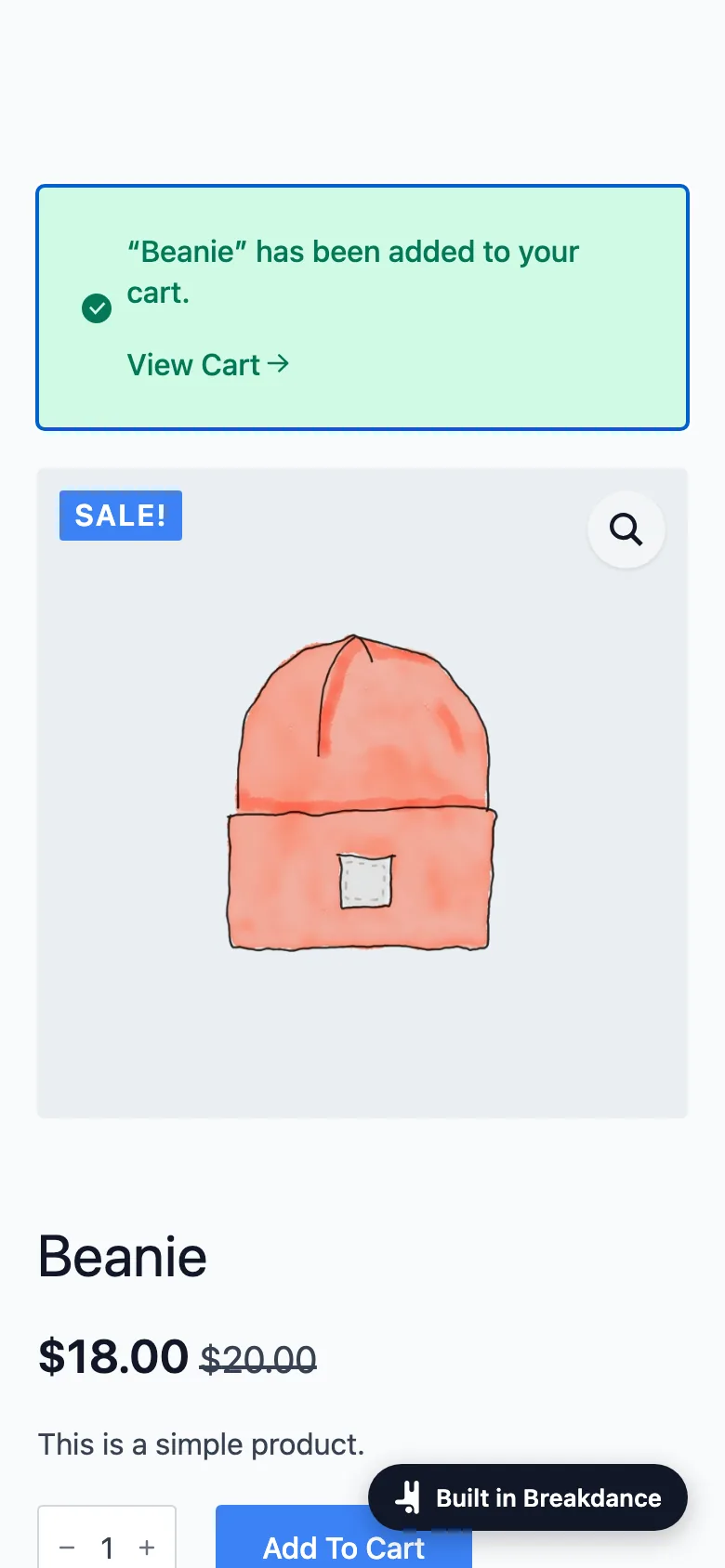
Test site, mobile: the product was added. - For a product with variations (size, colour), choose a combination. The button becomes active and the product goes into the cart.
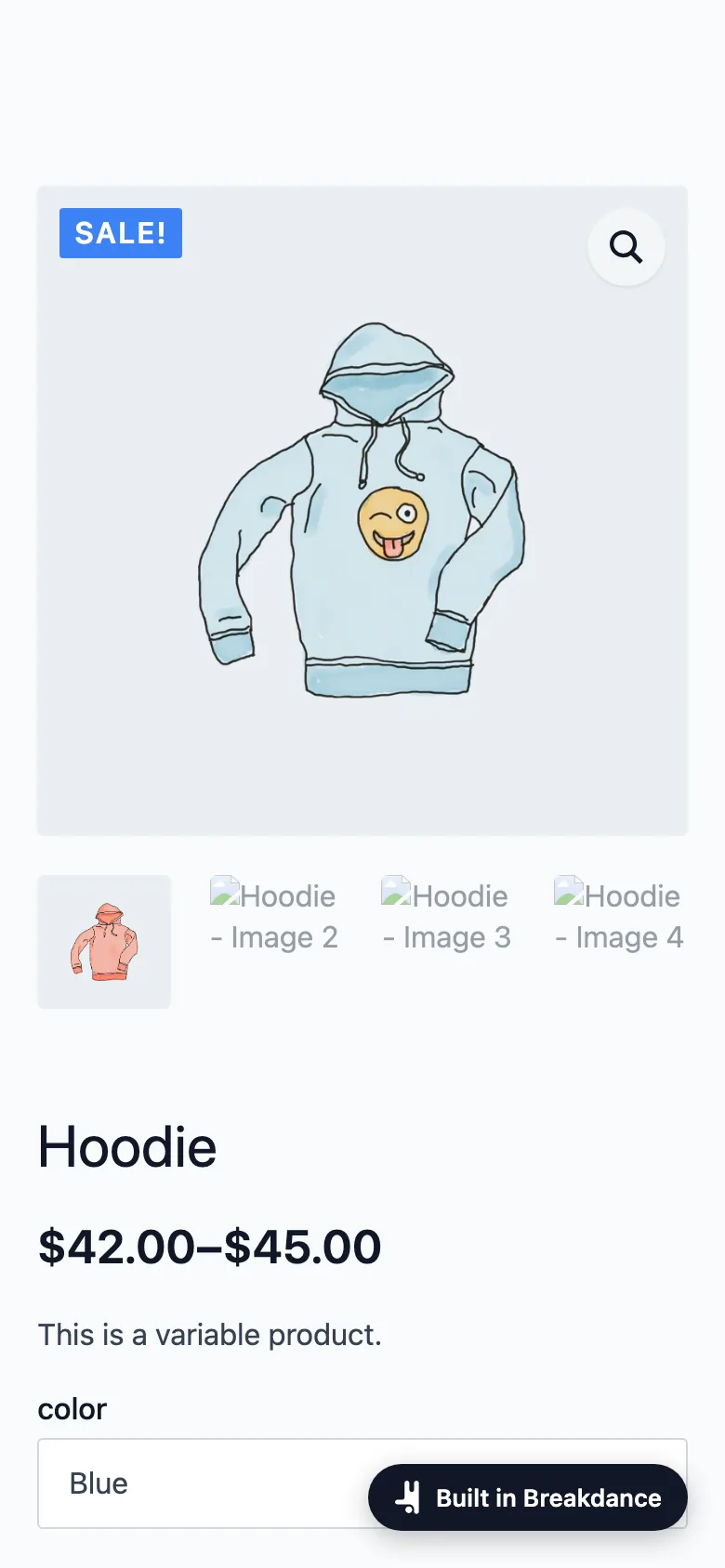
Choosing variations works. - Open the cart: the products are there.
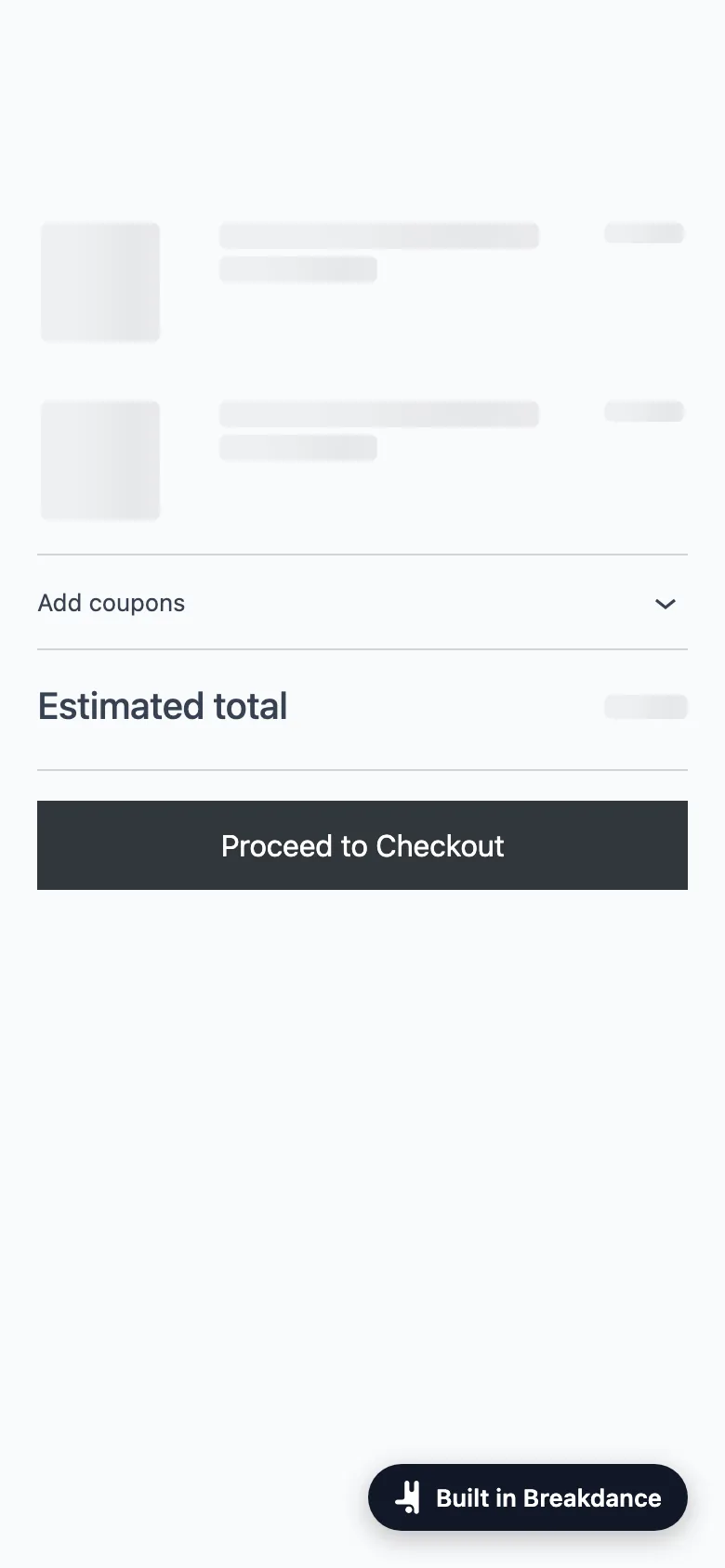
The cart is never cached. - Open checkout and check that the form appears. Stop before the payment step.
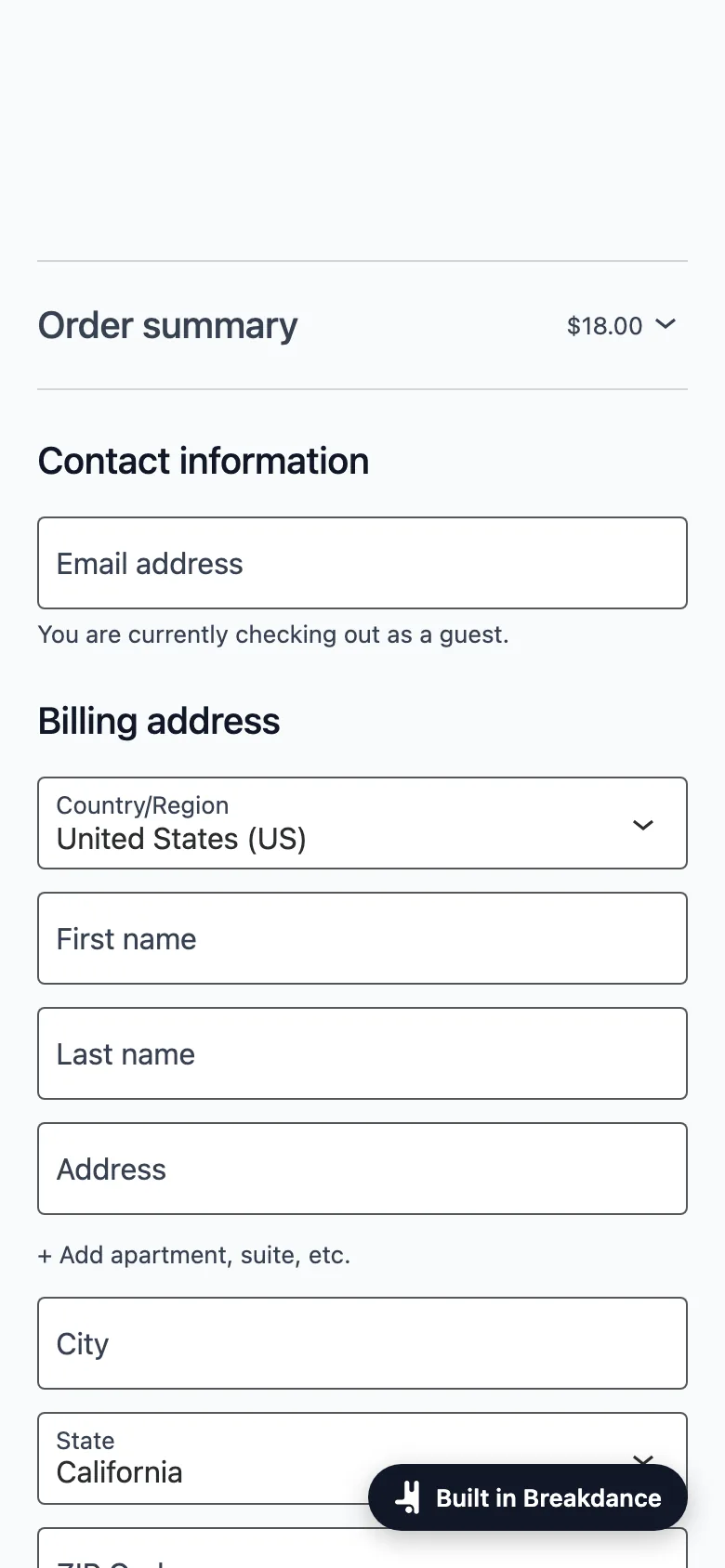
Checkout: the form is there. - Open my account and check that login and registration are visible.
- Do you have a mini cart in your header? Then also check that it shows the right count. Our test site had no mini cart, so we did not test it.
Expected result: every step works and the browser console shows no new errors. On the test site that was the case after the first optimization.
Optional: cart and logged-in customers
By default, visitors with something in the cart and logged-in customers get a fully built page on every click. On the Cache tab, card Cart and logged-in customers, there are two functions that can speed this up. Both are off by default and the optimizer does not switch them on.
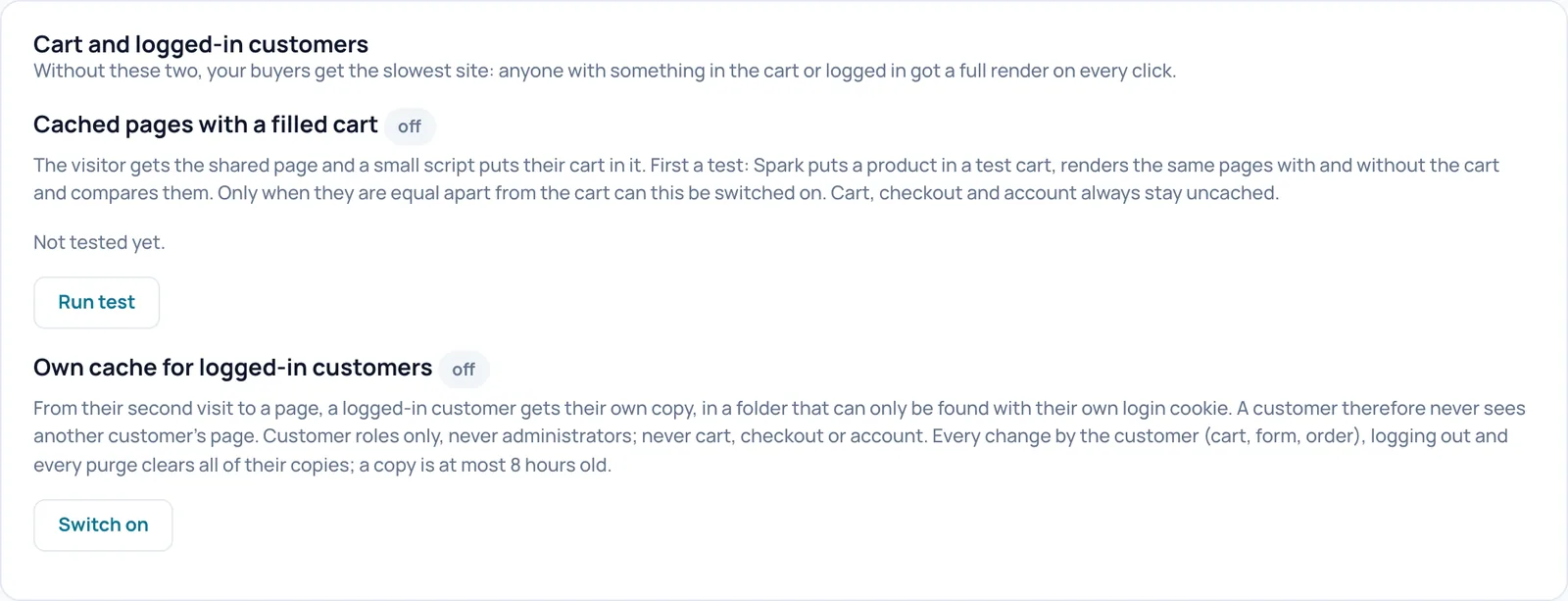
Only switch these functions on if your shop has many returning or logged-in customers, and then repeat the final check above, also logged in as a test customer.
Unsure about a step? Revert, check your site and ask us through the contact page.
No Spark Speed yet? See what it does and what it costs.
Frequently asked questions
Cart, checkout and account are never cached, and with something in the cart a visitor gets fresh pages by default. The optional customer cache keeps copies per customer, only findable with their own login cookie.
This guide was tested with WooCommerce. We do not describe a FluentCart workflow yet.
Not for this check. If you want to test payments, use your payment provider's test mode.