The Cache screen: every function explained
This page describes every switch, button and status line on the Cache tab of Spark Speed 0.73.2, in screen order. It is meant for WordPress administrators who want to know what a setting does before touching it. Each function says whether it is basic or advanced, what the default is and how to undo it.
In short
- The page cache is on by default and the optimizer switches it on when it is off. Most sites need to change little on this tab.
- Cached pages with a filled cart and an own cache for logged-in customers are off; you switch them on deliberately, the cart only after a successful test.
- On Apache, Spark serves cached pages without PHP. Those responses have no x-spark-speed headers; the proof is at the bottom of the page source.
- Rebuild cache and Start safe build clear the whole page cache; the site is slower for a while until the warmer is done.
Page cache
Here you decide what Spark stores as ready-made HTML and how it reaches the visitor. This card has the biggest influence on loading speed.
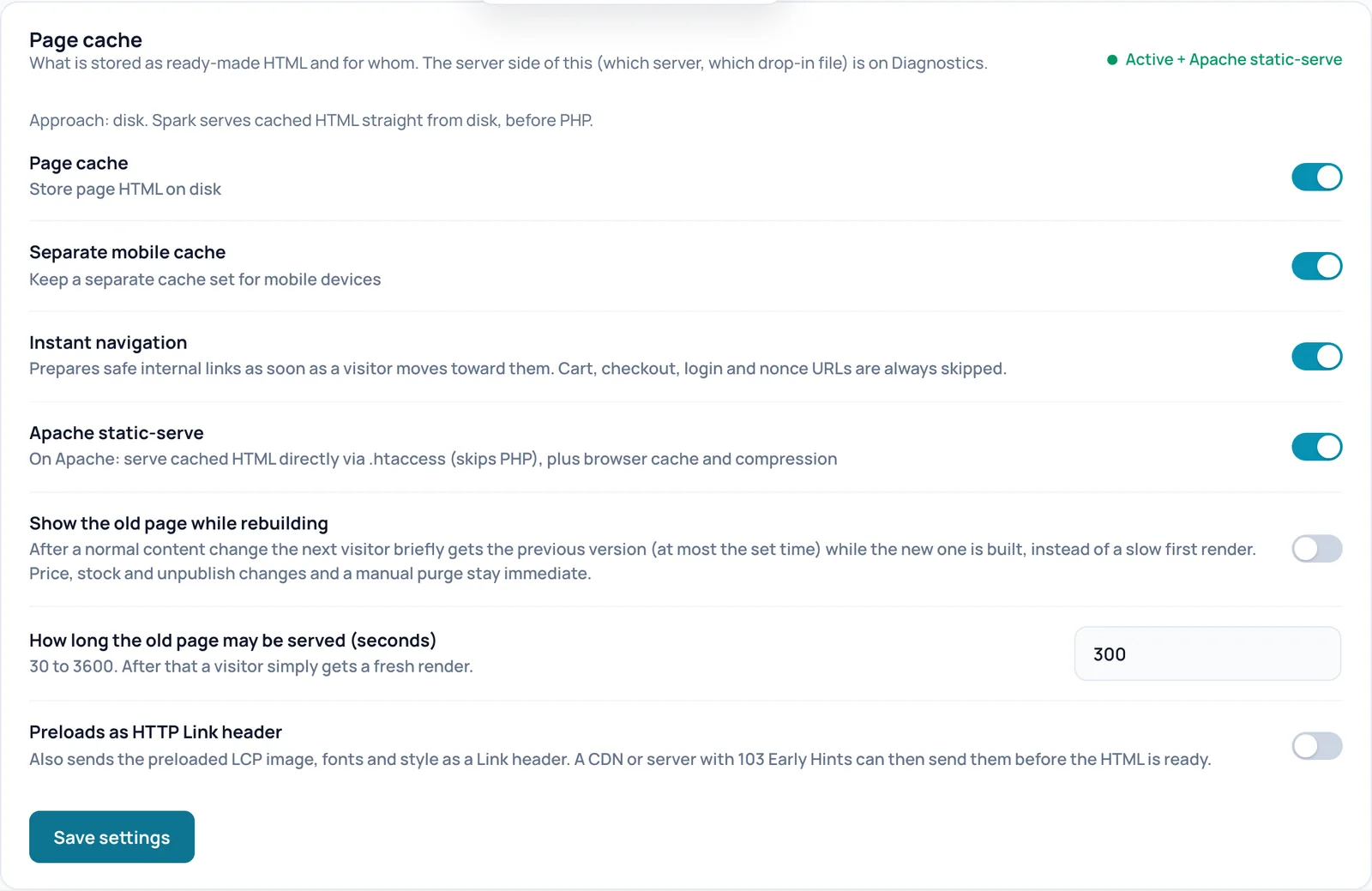
Status and approach
- What it does
- The coloured line at the top (for example Active + Apache static-serve) shows whether visitors are really served from the cache. The Approach line says how, for example disk: Spark stores ready-made HTML on the server disk and serves it before PHP and WordPress start. Other possible messages include Off, a conflict with another caching plugin or a missing component.
- How to check the effect
- Green means the cache is ready, not that every page is already cached. How much is ready is shown under Cache build. The server side (which server, which drop-in file) is on Diagnostics.
- Watch out
- If the line reports a conflict, another caching plugin manages the page cache. Deactivate that plugin; two page caches side by side do not work.
Page cache
- What it does
- The main switch. On: Spark stores the HTML of normal visits by anonymous visitors and serves that stored copy on the next visit, without WordPress having to build the page again. That lowers the time to first byte (TTFB, the time before the server starts answering).
- When to switch it on or off
- Keep it on. Only switch it off temporarily to test whether a problem is caused by the cache.
- Requirements
- No other caching plugin managing the page cache. WordPress must be able to set the cache setting in wp-config.php.
- How to check the effect
- Open a page twice in a private window. On Apache with Apache static-serve, the page source ends with a comment that starts with
Spark Speed | cached. When the cache runs through PHP, the response headerx-spark-speed-cachereads HIT. - Example
- After saving, Spark builds the cache in the background. After a few minutes coverage under Cache build goes up.
- Watch out
- Switching it off empties the warmer queue. Logged-in visitors and visitors with a filled cart do not get a shared copy by default.
- How to undo
- Switch it off and click Save settings.
- Technical name
cache_enabled
Separate mobile cache
- What it does
- Keeps a separate copy of every page for phones. A phone then gets the HTML with the mobile optimizations (for example a smaller main image) and a computer gets the desktop version.
- When to switch it on or off
- Keep it on, especially when your builder uses separate mobile layouts or backgrounds. Off is only fine when the page has exactly the same HTML on phone and desktop.
- How to check the effect
- In the stored copy, the comment at the bottom of the page source says
mobileinstead ofdesktopwhen you open the page on a phone. - Example
- Your homepage has a different hero image on mobile. With this switch on, a phone visitor gets the right one.
- Watch out
- Roughly twice as many stored files, and the warmer needs more time to build both variants.
- How to undo
- Switch it off and save.
- Technical name
cache_mobile
Apache static-serve
- What it does
- Apache servers only: Spark writes its own block into the .htaccess file so Apache sends the stored HTML directly, without starting PHP. The block also enables browser caching and compression for files such as CSS, JavaScript, images and fonts.
- When to switch it on or off
- On for Apache. On other servers (for example nginx or LiteSpeed) this switch does not change how pages are served.
- Requirements
- Apache with mod_rewrite and a writable .htaccess file.
- How to check the effect
- A page served this way has no
x-spark-speedheaders, because PHP does not run. The proof is theSpark Speed | cachedcomment at the bottom of the source and the# BEGIN Spark Speedblock in .htaccess. - Example
- On the test site (Apache) the status reads Active + Apache static-serve and cached pages come back without Spark headers.
- Watch out
- If .htaccess is not writable, Spark says so and falls back to serving through PHP. This setting belongs to the server and is not carried over when you export or import settings.
- How to undo
- Switch it off and save; Spark removes its block from .htaccess again.
- Technical name
htaccess_optimize
Show the old page while rebuilding
- What it does
- After a normal content change, the next visitor briefly gets the previous version while Spark builds the new one. Nobody waits for a slow first build. Price, stock and unpublish changes and a manual purge (clearing the cache) stay immediate.
- When to switch it on or off
- On if you often edit content on a busy site. Off if visitors must never see the previous version after a change.
- Requirements
- Page cache on. The maximum duration is set in the field below.
- How to check the effect
- Right after saving a post, the page served through PHP carries the header
x-spark-speed-cache: STALE, then HIT with the new content. - Example
- You fix a typo in a blog post. The first visitor afterwards briefly still sees the old text; the next one gets the corrected version.
- Watch out
- A visitor can see outdated content for at most the set time. On a Kinsta server the switch has no effect.
- How to undo
- Switch it off and save.
- Technical name
serve_stale
How long the old page may be served (seconds)
- What it does
- The maximum number of seconds the previous version may still be shown. After that a visitor simply gets a fresh render.
- When to switch it on or off
- Only change it when Show the old page while rebuilding is on. Shorter means less chance of outdated content.
- Requirements
- A value from 30 to 3600. An empty value or 0 becomes 300.
- Example
- 600 means at most ten minutes of the previous version.
- How to undo
- Set the value back to 300 and save.
- Technical name
stale_ttl
Preloads as HTTP Link header
- What it does
- Also sends the files Spark already preloads (such as the largest image at the top of the screen, fonts and style) as a Link header in the server response. A CDN or server with 103 Early Hints can then send those files before the HTML is ready.
- When to switch it on or off
- On if you use a CDN or server that makes use of Early Hints or Link headers. Without such a layer it adds nothing.
- How to check the effect
- The response for a cached page contains a
Link: <...>; rel=preloadheader. - Example
- Your site runs behind Cloudflare with Early Hints on; the browser can then fetch the hero image earlier.
- Watch out
- A wrongly preloaded file only costs bandwidth.
- How to undo
- Switch it off and save.
- Technical name
preload_headers
Save settings
- What it does
- Saves the switches and the field on this card. Spark then restarts building the cache; the existing cache is not cleared first.
- How to check the effect
- A confirmation appears at the top and the card status line updates.
Cart and logged-in customers
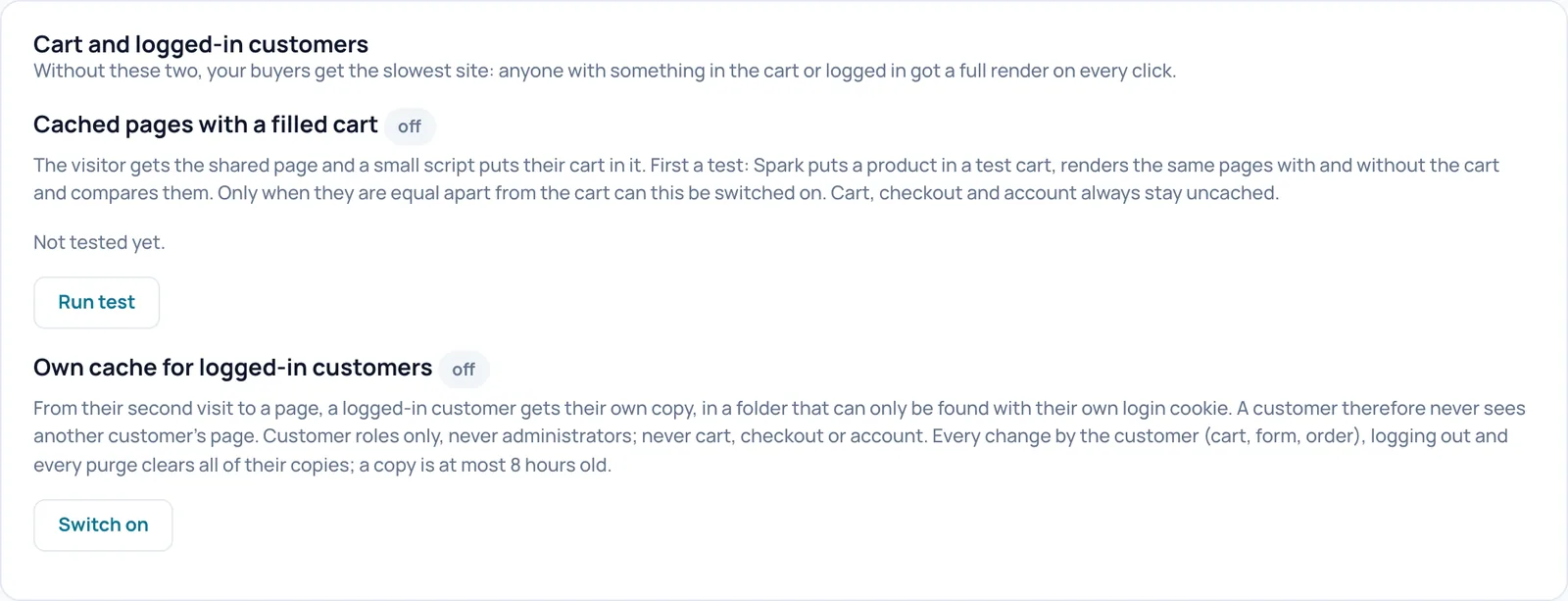
Without these two features your buyers get the slowest site: anyone with something in the cart or logged in gets a fully built page on every click. Both are off by default and you switch them on deliberately.
Cached pages with a filled cart
- What it does
- Normally a visitor with something in the cart gets a fully built page on every click, so the site is slowest for buyers. With this feature on, that visitor gets the shared cached page and a small script puts their own cart into it. A page built with a filled cart never ends up in the shared cache. Cart, checkout and account always stay uncached.
- When to switch it on or off
- On for a WooCommerce shop, but only after Run test has shown that the pages stay the same apart from the cart. The status next to the title shows off or on.
- Requirements
- WooCommerce active and a successful test no more than 30 days old.
- How to check the effect
- In a private window, add a product to the cart and open a category page: the cart count is correct and the page served through PHP comes back as HIT instead of BYPASS.
- Watch out
- Switching it on clears the whole page cache, which is then rebuilt. Cart texts that WooCommerce does not refresh (for example a custom counter or "20 euros to free shipping") can stay outdated; the test warns about that.
- How to undo
- Once the feature is on, this card shows a button to switch it off.
- Technical name
woo_cart_cache
Run test
- What it does
- Spark puts a simple product in a test cart, builds a number of your site's pages with and without the cart and compares them. The test cart is removed again afterwards. The result appears where it says Not tested yet.
- When to switch it on or off
- Before switching on the cart feature, and again after big changes to your theme or mini cart.
- Requirements
- WooCommerce with at least one simple product that is in stock and can be added to the cart. The test runs in the background through WP-Cron.
- How to check the effect
- Reload the tab after a few minutes and read the line with the latest test. Pages you want included in the test go under Test pages in Advanced rules.
- Watch out
- The test builds every test page several times, so it briefly loads the site. Preferably run it outside peak hours.
Own cache for logged-in customers
- What it does
- A logged-in customer gets their own stored copy from their second visit to a page. It sits in a folder that can only be found with their own login cookie, so a customer never sees someone else's page. Customer roles only, never administrators, and never cart, checkout or account.
- When to switch it on or off
- On for shops or membership sites where many customers browse while logged in.
- Requirements
- Page cache on, unique security keys in wp-config.php, and no other caching plugin managing the page cache. If it cannot be used, the card shows the reason instead of the button.
- How to check the effect
- Log in with a test account that has the customer role and open the same page twice: the second time the header
x-spark-speed-source: klantcomes with HIT. The card shows the number of sessions with their own copies. - Watch out
- Every change by the customer (cart, form, order), logging out and every purge clears all of their copies. A copy is at most 8 hours old, so content that changes on its own can be outdated for that long.
- How to undo
- Once the feature is on, this card shows a button to switch it off; all customer copies are then removed.
- Technical name
klant_cache
Switch on
- What it does
- Switches on Own cache for logged-in customers. If that fails, Spark reverts the setting and tells you why.
- How to check the effect
- The label next to the title changes from off to on.
Cache build
The warmer fills and maintains the cache on its own in the background. This card shows how far it has got, lets you rebuild everything and, in the Build mode block, lets you choose between a safe and a fast round.
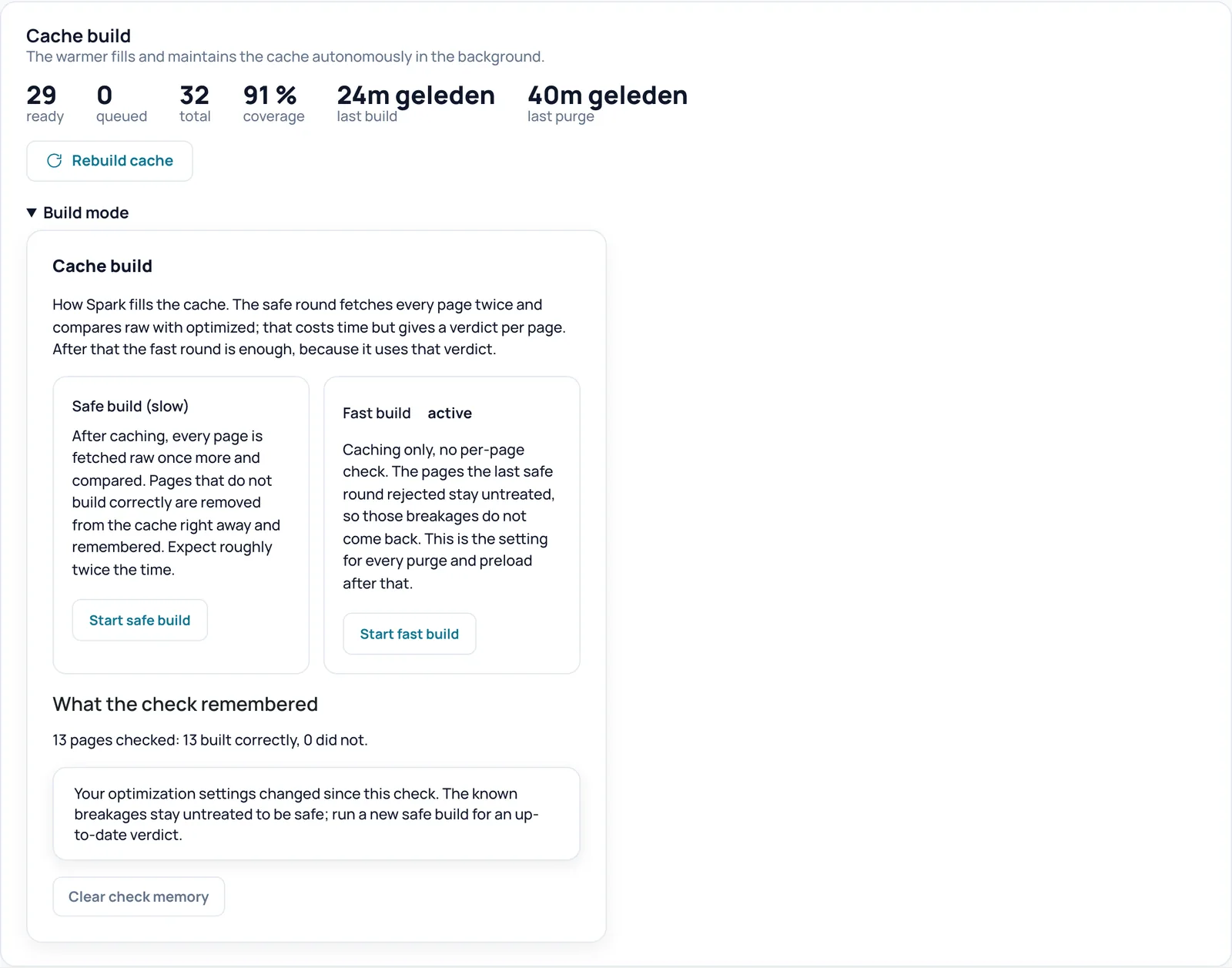
Figures: ready, queued, total, coverage, last build, last purge
- What it does
- The warmer is the background process that fills and maintains the cache. ready is the number of pages with a stored copy (desktop and mobile count as one page), queued what still has to be built, total the number of pages Spark wants to cache and coverage the share of ready out of total. last build and last purge show when the warmer last built something and when the whole cache was last cleared.
- How to check the effect
- The figures update when you reload the tab. If a measurement is missing, Spark shows "not measured yet" instead of a made-up 0.
- Example
- On the test site: 29 ready, 0 queued, 32 total, 91 % coverage.
- Watch out
- The warmer must be able to reach your site itself. If it cannot, this card shows a line saying the warmer is blocked or paused, with a button to resume it.
Rebuild cache
- What it does
- Clears the full page cache and then queues all public pages again, most important first (home, product categories, products, pages, posts).
- When to switch it on or off
- After big changes, such as a new menu, an edited builder template or different theme settings.
- How to check the effect
- A notice shows how many pages are being rebuilt; last purge changes and queued goes up.
- Watch out
- Until the warmer is done, visitors get fully built pages; on a large site that is noticeable. The object cache is not cleared by this.
- How to undo
- Cannot be undone; the warmer rebuilds the cache by itself.
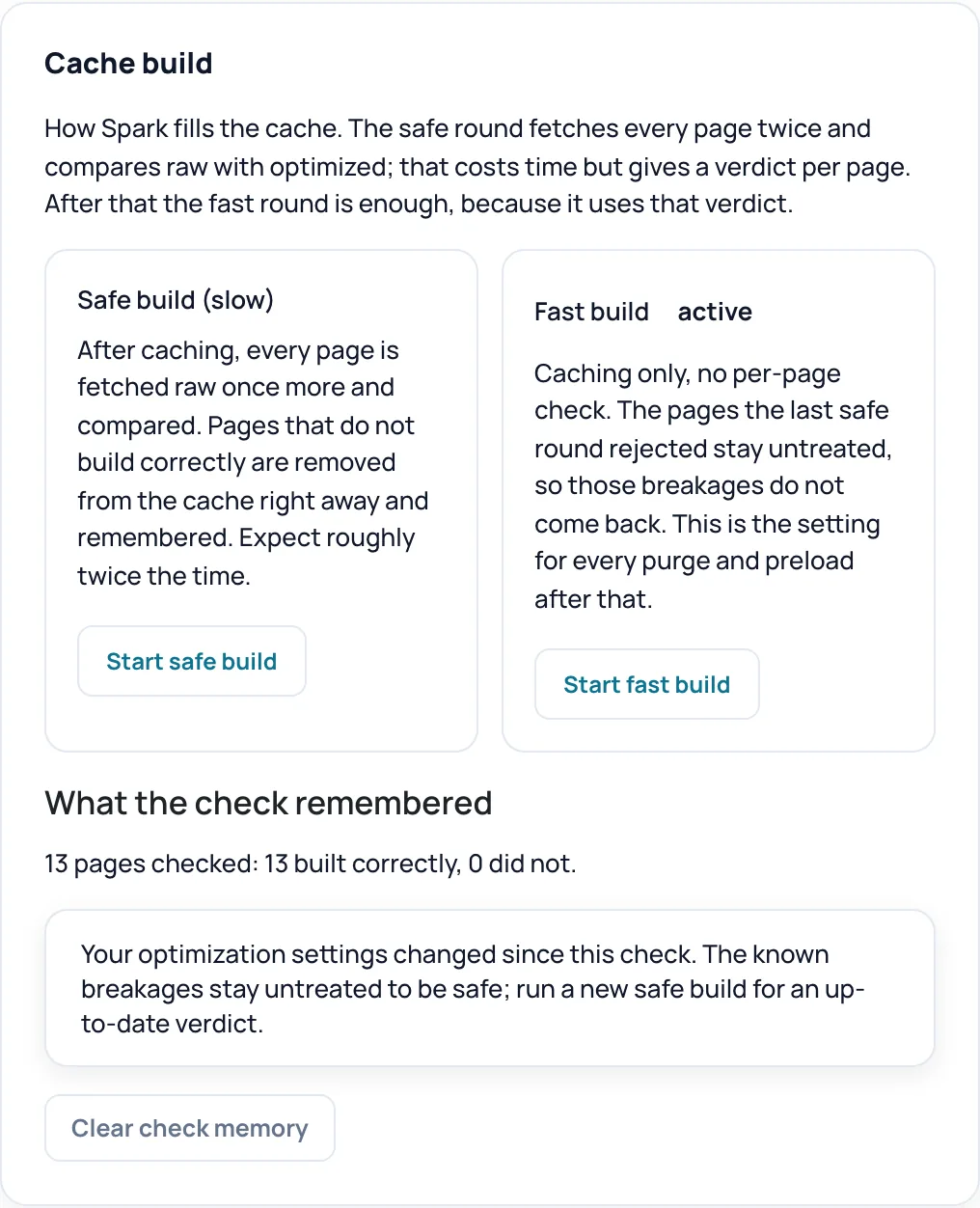
Build mode
- What it does
- A collapsible block where you choose how Spark fills the cache. Safe build (slow): after caching, every page is fetched once more without optimizations and compared; a page that does not build correctly is removed from the cache at once and remembered. Fast build: caching only, without a per-page check; pages the previous safe round rejected get no optimizations, so those breakages do not come back. The active choice is labelled active.
- When to switch it on or off
- A safe round after first installation or after big optimization changes; after that the fast one is enough.
- Watch out
- A safe round takes roughly twice as long. Errors that only appear when a delayed script runs in the browser are not caught by this comparison.
- Technical name
warm_mode
Start safe build
- What it does
- Selects the safe mode, wipes the old verdict, clears the whole page cache and queues all pages to be built and checked one by one.
- How to check the effect
- A notice gives the number of pages; after that What the check remembered fills up.
- Watch out
- The cache is temporarily empty, so the site is slower for a while.
- How to undo
- Click Start fast build to switch to the fast mode.
Start fast build
- What it does
- Selects the fast mode and queues all pages without clearing the cache first. The verdict of the previous safe round stays in force.
- How to check the effect
- A notice gives the number of pages and how many known breakages are served without optimizations.
- How to undo
- Click Start safe build.
What the check remembered
- What it does
- A summary of the last safe round, for example 13 pages checked: 13 built correctly, 0 did not. If pages were rejected, it lists which ones and why. If you changed optimization settings after the check, Spark says the verdict is no longer up to date.
- When to switch it on or off
- If you see the notice that your settings changed, run a new safe build for an up-to-date verdict.
Clear check memory
- What it does
- Removes all remembered per-page verdicts. The next safe round starts with a clean slate.
- When to switch it on or off
- After you fixed the cause of a rejected page, for example a plugin conflict.
- Watch out
- Without a verdict, a previously rejected page gets optimizations again in fast mode and the same error can come back.
- How to undo
- Run a safe build to fill the memory again.
Object cache
The object cache speeds up everything that is not served from the page cache, such as the admin, the checkout and logged-in visitors.
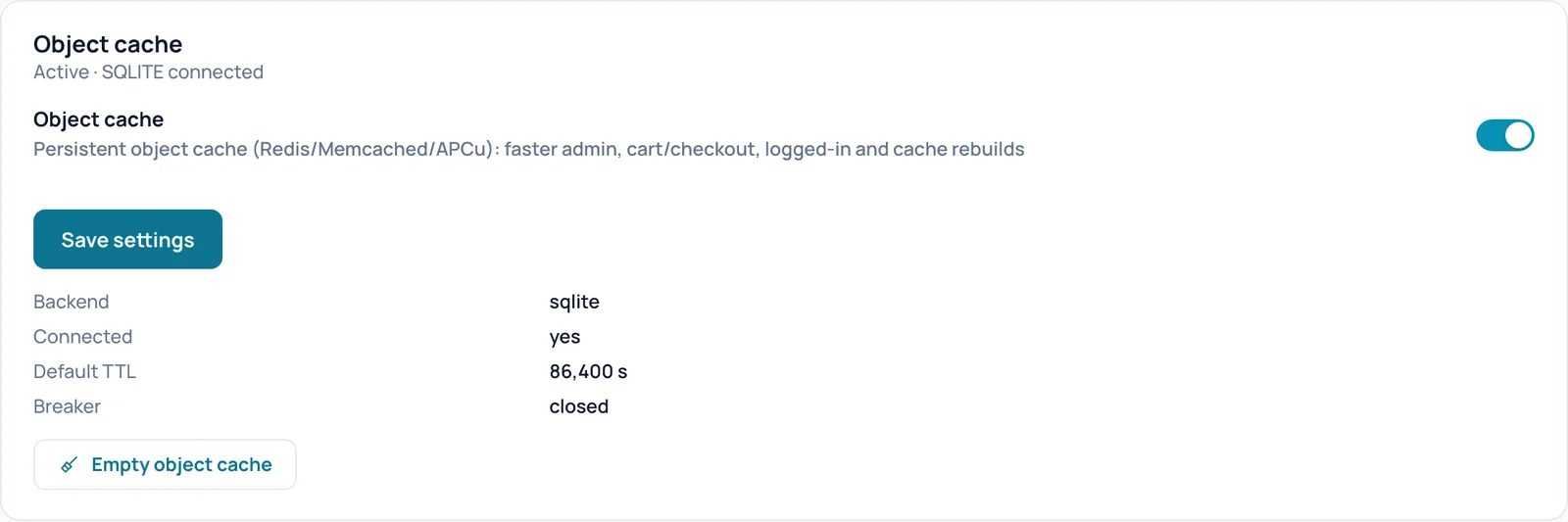
Object cache
- What it does
- WordPress fetches a lot of data from the database every time it builds a page. A persistent object cache keeps that data between requests, so everything not served from the page cache gets faster: admin, cart and checkout, logged-in visitors and rebuilding the cache. Spark uses Redis, Memcached, SQLite or APCu, depending on what the server offers.
- When to switch it on or off
- On if the status shows connected after saving. Off if your hosting already provides its own object cache.
- Requirements
- Reachable storage on the server and no object cache file from another plugin. Management requires a valid licence (or the 14-day grace period).
- How to check the effect
- The line under the title (for example Active · SQLITE connected) and the Backend and Connected rows. If Spark finds no storage, a yellow notice appears after saving.
- Example
- During the first Optimize my site run on the test site, the optimizer switched on the object cache with SQLite and then verified the connection.
- Watch out
- The description next to the switch only names Redis, Memcached and APCu, but SQLite is used too. This setting belongs to the server and is not carried over on export or import.
- How to undo
- Switch it off and save; Spark removes its object cache file again.
- Technical name
object_cache
Save settings
- What it does
- Saves the state of the Object cache switch. Spark then places or removes the matching file.
Backend, Connected, Default TTL, Breaker
- What it does
- Backend: which storage is in use (redis, memcached, sqlite or apcu). Connected: whether that storage really answers right now. Default TTL: how long data without its own expiry is kept (86,400 s is one day). Breaker: a safeguard that temporarily skips the storage when it repeatedly answers too slowly; closed is the normal state.
- How to check the effect
- If Connected says no or the Breaker is open, check Diagnostics for the cause.
Empty object cache
- What it does
- Empties the object cache. Needed after a change made directly in the database that the object cache does not notice by itself.
- Requirements
- Only visible when a persistent object cache is active.
- How to check the effect
- A notice confirms the object cache was emptied.
- Watch out
- The site then fetches everything from the database again, so it is slower for a while. The page cache stays; conversely, clearing the page cache does not empty the object cache either.
Cached pages
A list of the pages Spark keeps a copy of, with a button per page to rebuild only that page.
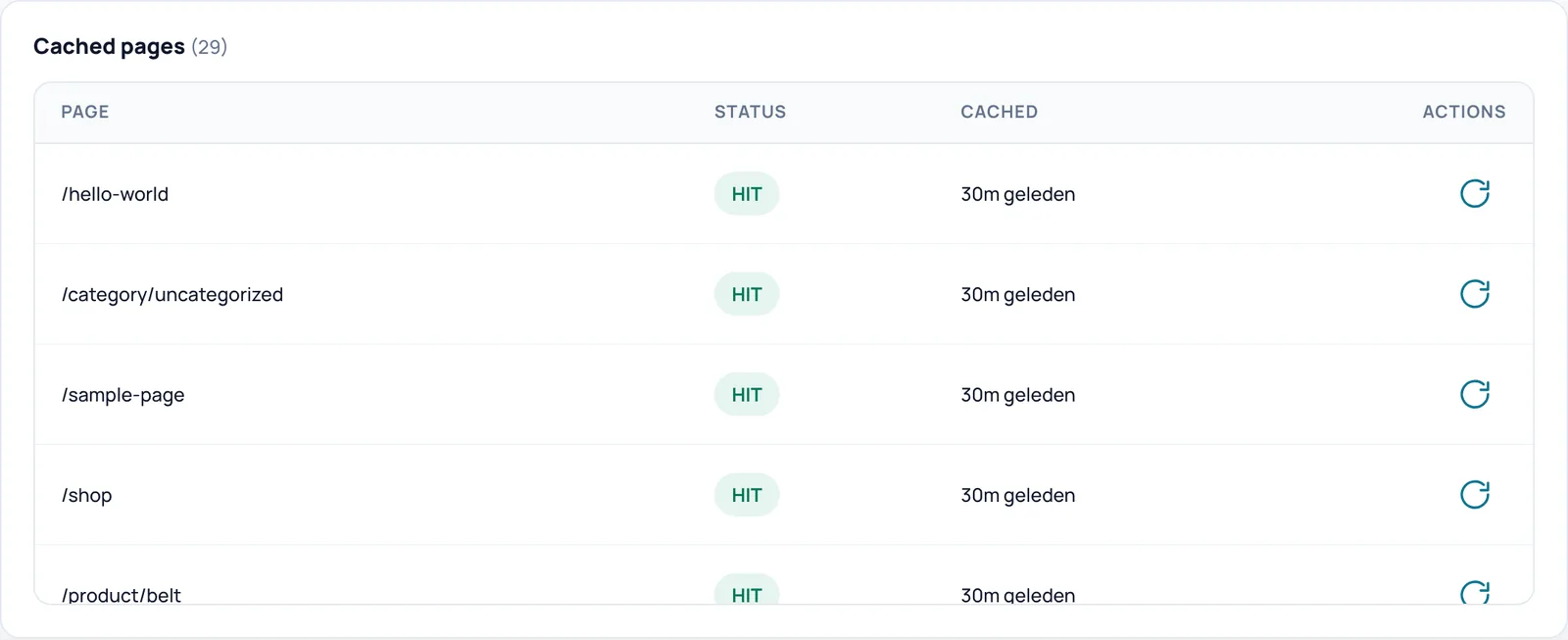
Cached pages list
- What it does
- Shows the pages that are really stored on disk, newest first: the path, the status, how long ago the copy was made, and an action button.
- How to check the effect
- Compare the number in brackets with ready under Cache build.
- Watch out
- The Status column always shows HIT: it is a fixed marker that a copy exists, not a live measurement. If your server uses its own LiteSpeed cache, what LiteSpeed stores is not in this list.
Re-cache this page
- What it does
- The arrow icon in the Actions column. Removes only the copies of this one page (including follow-up pages) and has it rebuilt right away.
- When to switch it on or off
- When a page still looks outdated after a change, without clearing the whole cache.
- How to check the effect
- A notice confirms the page was re-cached with its path, and the time in the Cached column starts again.
- Watch out
- The object cache is not emptied by this.
Advanced rules
Exactly what is or is not stored and how many variants an address may have. For most sites nothing needs to change here.
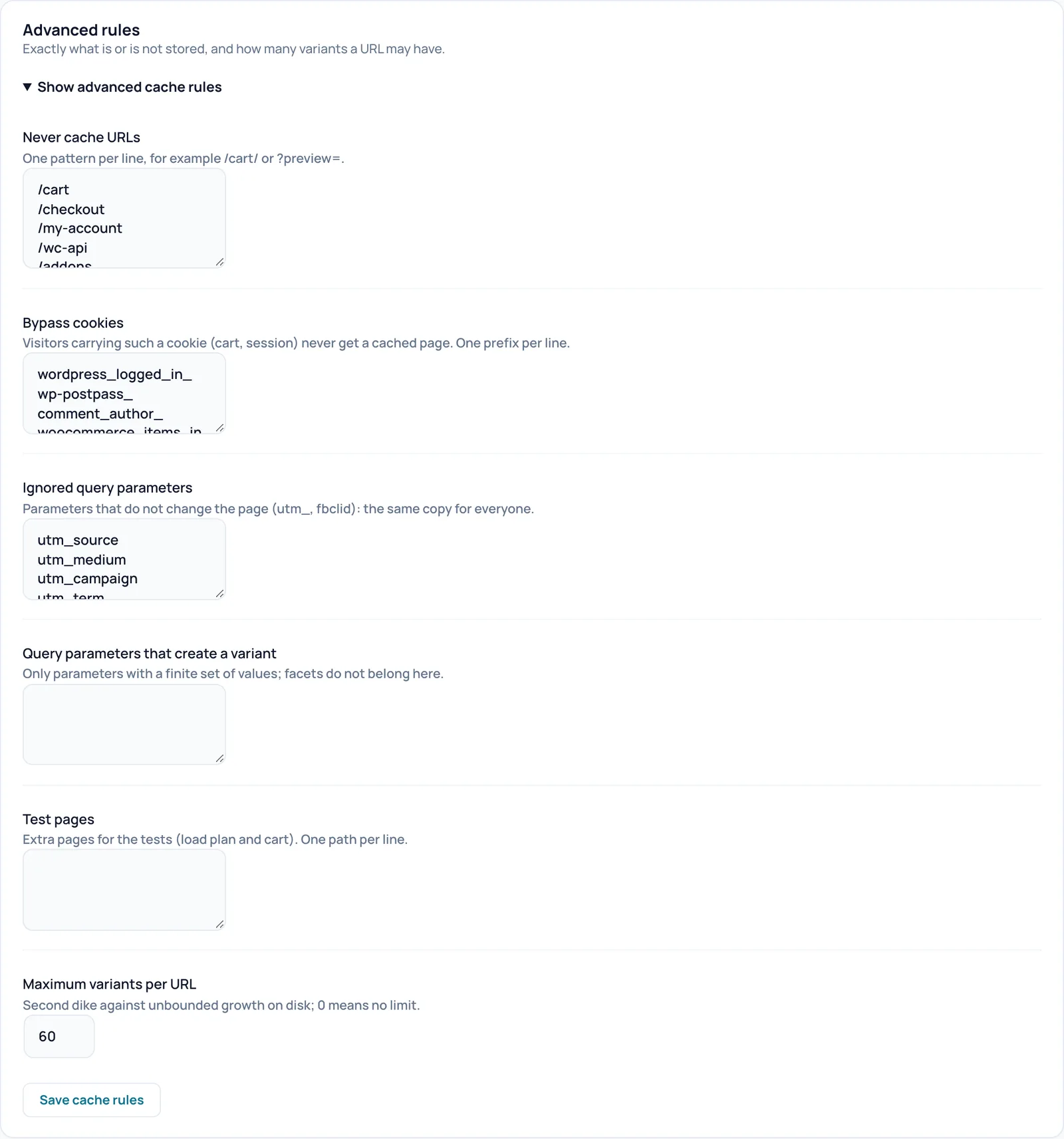
Show advanced cache rules
- What it does
- Expands the fields that decide exactly what is and is not stored and how many variants an address may have. All lists take one item per line.
- When to switch it on or off
- Only needed when you have a specific exception. The default lists cover a normal WooCommerce shop.
Never cache URLs
- What it does
- One piece of text per line. If a request address contains that text (case does not matter), the page is not stored.
- When to switch it on or off
- Add a line for pages with personal content that are not in the list, for example a different checkout address.
- How to check the effect
- A page that is not stored carries, when served through PHP, the header
x-spark-speed-reasonnaming the rule that matched. - Example
- On the test site the optimizer also added Dutch shop addresses such as
/winkelmandand/afrekenen. - Watch out
- It is a partial match: a line that is too short also excludes other pages. A copy that was already stored does not disappear by itself; clear the cache for that.
- How to undo
- Remove the line, save and clear the cache if needed.
- Technical name
bypass_urls
Bypass cookies
- What it does
- The start of cookie names, one per line. A visitor with such a cookie never gets a shared copy, and their visit is not stored either.
- When to switch it on or off
- Add a cookie from a plugin that changes the page per visitor, for example a currency switcher.
- Watch out
- Never put tracking cookies such as
_gaor_fbphere: almost nobody would get a cached page any more. The cookies for login, password pages and comments always stay in the list, even if you remove them. - How to undo
- Remove the line and save.
- Technical name
bypass_cookies
Ignored query parameters
- What it does
- Parameters in an address (the part after the question mark) that do not change the page, such as ad and campaign codes. Spark ignores them, so everyone gets the same copy.
- When to switch it on or off
- Add a parameter when visitors arrive from a new ad platform with its own code.
- How to check the effect
- An address with
?utm_source=testgets the same copy as the address without it. - Watch out
- Never put a parameter here that does change the content (for example a page number or filter); visitors would then see the wrong page.
- How to undo
- Remove the line and save.
- Technical name
ignore_queries
Query parameters that create a variant
- What it does
- Parameters with a limited set of values that do change the page. Each combination gets its own copy. Otherwise a page with an unknown parameter is not stored.
- Example
orderbyif your shop has a few fixed sort orders.- Watch out
- Do not put filters (facets), search terms or price filters here: every possible value would get its own file and the cache would grow without limit.
- How to undo
- Remove the line, save and clear the cache for the old variants.
- Technical name
cache_queries
Test pages
- What it does
- Extra pages Spark includes in its tests, such as the cart test. One path per line. Spark already picks the front page, a product category and recent content itself; in total it tests at most 8 pages.
- When to switch it on or off
- When an important page with a different layout, such as a deals page, should be included.
- Example
/deals/- Watch out
- Pages on another domain are ignored. More pages make a test take longer.
- How to undo
- Remove the line and save.
- Technical name
proof_urls
Maximum variants per URL
- What it does
- The limit on the number of stored variants of one address. Refreshing an existing variant is always allowed; a new variant above the limit is not stored and that visitor simply gets a fresh render. 0 means no limit.
- When to switch it on or off
- Lower on a small server with little disk space.
- Requirements
- A number from 0 to 500.
- How to check the effect
- When the limit is reached, the
x-spark-speed-reasonheader says so. - Watch out
- Too low a value leaves variants uncached; 0 removes this safeguard.
- How to undo
- Set the value back to 60 and save.
- Technical name
max_variants_per_url
Save cache rules
- What it does
- Saves all fields in this block at once and then queues all pages again for the warmer.
- How to check the effect
- A notice at the top confirms the exclusions were saved and the cache is being refreshed.
- Watch out
- The content of each field fully replaces the old list. Copy a list first if in doubt.
Unsure about a step? Revert, check your site and ask us through the contact page.
No Spark Speed yet? See what it does and what it costs.
Frequently asked questions
On Apache with Apache static-serve the server sends the stored file without starting PHP, so Spark sets no headers. Look at the bottom of the page source for the comment that starts with Spark Speed | cached.
The page cache stores complete pages for anonymous visitors. The object cache stores database data and speeds up everything that still has to be built, such as the admin and the checkout. Clearing one does not clear the other.
Check whether the warmer can reach your site itself. If it cannot, the Cache build card shows that the warmer is blocked or paused; fix the cause on the server and resume the warmer with the button on that card.
As long as you make no choice, Spark uses the safe round. After a completed safe round Spark switches to fast by itself, and that uses the verdict of the safe round.