The Optimization screen: every function
This page describes every function on the Optimization screen of Spark Speed 0.73.2, card by card and in screen order. It is for WordPress administrators who want to know what a switch does before turning it on. You save the settings of the cards Optimization through Measure real visitors together with the Save settings button at the bottom of the form.
In short
- The safe basics are already set after activation; riskier options are under May break something
- Optimize my site on the Overview can check risky options in a real browser first and only then switch them on
- If you switch something off yourself, the optimizer will not switch it back on by itself
- Check a change as a logged-out visitor: nothing is optimized for logged-in users
Smart optimization
At the top of the screen is a short card about AI advice. It points to the place where you create and export the diagnostic report.

AI label
- What it does
- The green AI label marks this as an AI feature. The card itself changes no settings: it only tells you where to create the AI report.
- Requirements
- A valid licence (or the 14-day grace period).
- Watch out
- This is not the Optimize my site button. That one is on the Overview screen, in the card with the same name.
Generate and export the diagnostic report under Diagnostics > Report
- What it does
- Takes you to Diagnostics, Report. There you export the diagnostic report, which you can give to an AI so it can assess your site and propose a better configuration.
- How to check the effect
- After the click you are on the Report tab of Diagnostics.
- Example
- You want a second opinion on your settings: open the report, export it and let your AI assistant read it.
Connect Claude or ChatGPT (MCP)
This card connects your own Claude or ChatGPT subscription to your site. The AI can then measure, change settings, undo changes and purge the cache. Every change is in the timeline and can be undone.
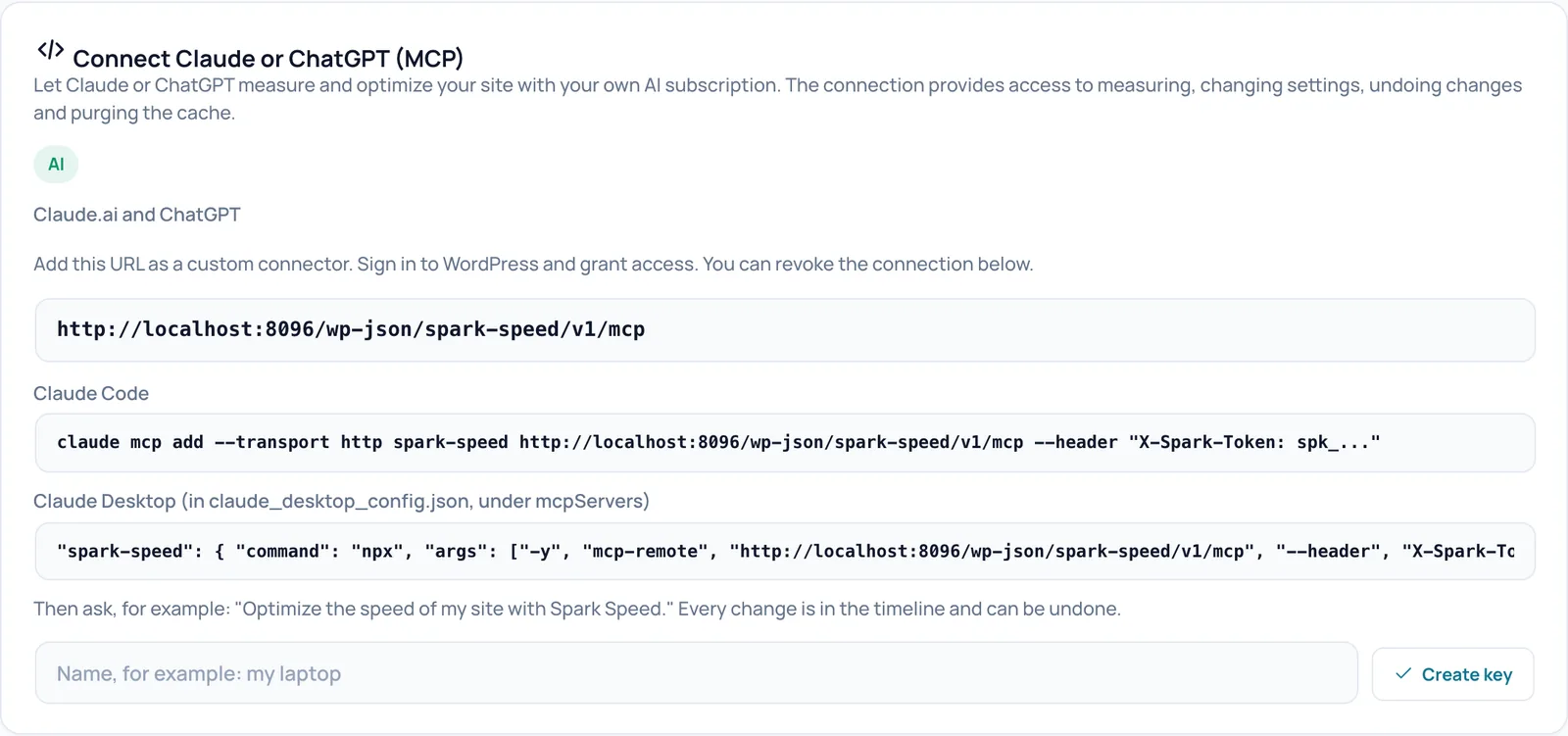
AI label
- What it does
- Shows that the AI connection is available. Without a valid licence the card only shows a message asking you to activate or renew your licence.
- Requirements
- A valid licence (or the 14-day grace period) and a WordPress account with administrator rights.
Claude.ai and ChatGPT
- What it does
- The address of your site's MCP connection. MCP is an open standard that lets an AI assistant talk to software safely. You add this address in Claude.ai or ChatGPT as a custom connector; then you sign in to WordPress and grant access.
- Requirements
- Claude.ai and ChatGPT must be able to reach your site over the internet via HTTPS. A local test site does not work for this.
- How to check the effect
- After you grant access, the connection appears in this card, with a button to revoke it.
- Example
- Paste the address into Claude.ai as a custom connector and then ask: "Optimize the speed of my site with Spark Speed."
- Watch out
- The AI works with the rights of the administrator who granted access: measuring, changing settings, undoing changes and purging the cache. If the AI starts a full optimization run, the browser check still happens in wp-admin: keep the admin screen open. It does not run entirely without a browser.
- How to undo
- Revoke the connection with the button that appears next to it in this card.
Claude Code
- What it does
- A ready-made command for Claude Code, the terminal version of Claude. It adds the connection using a key; your own key goes where spk_... is shown.
- Requirements
- A key you create below with Create key.
- Example
- Create a key named "my laptop", replace spk_... in the line with that key and run the line in your terminal.
Claude Desktop (in claude_desktop_config.json, under mcpServers)
- What it does
- The settings snippet for the Claude Desktop app. You paste it into the Claude Desktop configuration file, under mcpServers, with your own key.
- Requirements
- A key from Create key. The line uses npx, which comes with Node.js; that must be installed on your computer.
- Watch out
- The line is longer than the card is wide. Copy it in full.
Name, for example: my laptop
- What it does
- A recognisable name for the key you are about to create, so you later know which key belongs to which device or service.
- Example
- "home laptop" or "Claude Code office".
Create key
- What it does
- Creates a new key for Claude Code or Claude Desktop. The key is shown once; after that Spark only stores an unreadable fingerprint of it. You can have at most five keys at a time.
- How to check the effect
- The new key appears in a yellow notice. After that it is listed in this card, with when it was last used.
- Watch out
- Copy the key immediately and keep it in a password manager. Once lost, it cannot be recovered: you can only revoke it and create a new one. Anyone with the key can do everything the connection can do. Never put it in screenshots, tickets or chats.
- How to undo
- In the key list, click Revoke next to the key.
Optimization
The top card of the settings form. Here you switch all optimizations on or off at once, or switch to safe mode.
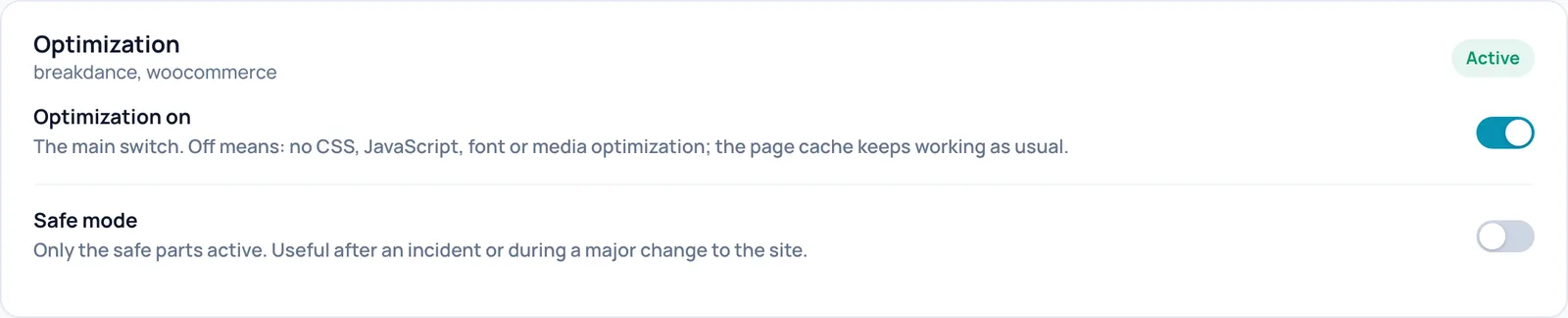
Active and profile
- What it does
- The label on the right shows the state: Active (green), Active (safe mode) or Off. Below the title you see which builder and plugins Spark recognised, for example breakdance, woocommerce. Spark uses that detection for its lists of scripts and styles that must not be touched.
- Watch out
- The label only looks at the two switches on this card. Active does not mean every individual optimization below is on.
Optimization on
- What it does
- The main switch for every optimization on this screen: CSS, JavaScript, fonts and media. Off means pages go into the cache unprocessed. The page cache itself keeps working.
- When to switch it on or off
- Leave it on. Switch it off temporarily when you want to rule out that a layout problem comes from the optimizations.
- How to check the effect
- Open the page in a private window (logged out, because nothing is optimized for logged-in users), wait until the cache has been refreshed and view the page source (Ctrl+U or Cmd+Option+U). With the switch off you see the separate stylesheets and scripts of your theme and plugins again.
- Example
- A button suddenly looks wrong: switch it off, save, clear the cache and see whether the problem disappears.
- Watch out
- With this switch off, the switches below do nothing either, even if they are still on.
- How to undo
- Switch it back and click Save settings at the bottom of the page. The cache is then rebuilt in the background. If you switch it off yourself, Spark remembers that and Optimize my site will not switch it back on by itself.
- Technical name
optimize_enabled
Safe mode
- What it does
- An emergency mode: the page cache keeps working, but nothing is optimized. In safe mode Optimize my site skips all risky improvements. Your individual settings are kept.
- When to switch it on or off
- On after an incident, or while you make a big change to the site (migration, new theme). Off again afterwards.
- How to check the effect
- The label becomes Active (safe mode). The page source for a logged-out visitor no longer contains combined CSS or delayed scripts.
- Example
- You are testing a new version of your theme: switch safe mode on, test, switch it off and clear the cache.
- Watch out
- Pages already in the cache keep their old version until they are rebuilt. Clear the cache if you want to see the change right away. An AI proposal can never change safe mode.
- How to undo
- Switch it off, click Save settings and then clear the cache.
- Technical name
safe_mode
CSS
Settings for your site's styling files. The safe basics are at the top; the riskier options are under May break something.
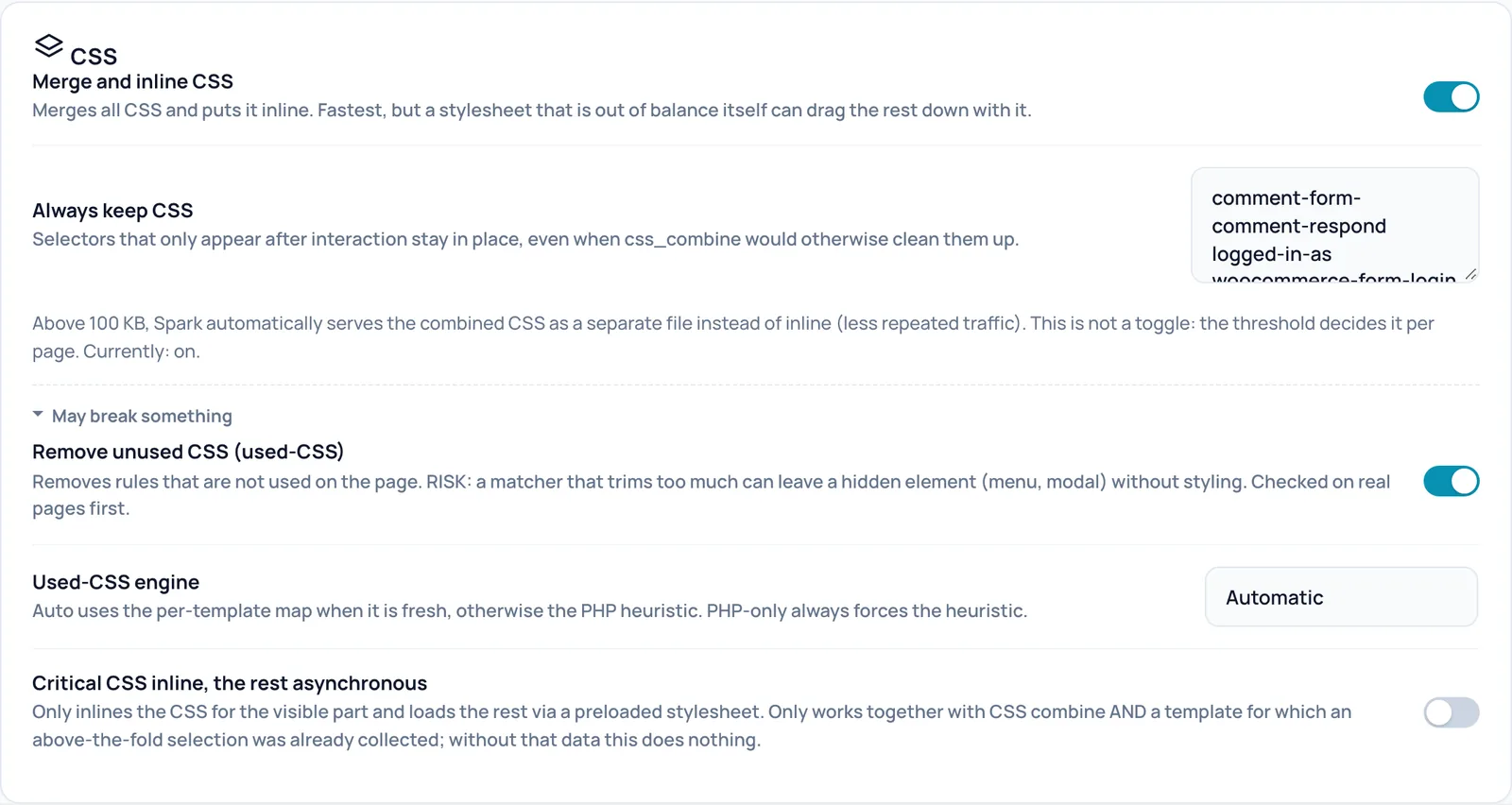
Merge and inline CSS
- What it does
- CSS is the styling of your pages. Spark merges all stylesheets from your own site into one block and puts it directly in the page. That saves many separate requests that hold up the first render. Nothing is removed in the process.
- When to switch it on or off
- Leave it on. Only switch it off if a stylesheet disturbs the rest of the styling after merging.
- Requirements
- The main switch Optimization on is on and Safe mode is off. If your site sends a Content-Security-Policy (a security rule) that forbids inline CSS, Spark skips merging.
- How to check the effect
- Open the page in a private window (logged out, because nothing is optimized for logged-in users), wait until the cache has been refreshed and view the page source (Ctrl+U or Cmd+Option+U). Search for spark-combined-css: that is the combined block (or the separate file, see the threshold below).
- Example
- A Breakdance page with twelve separate stylesheets gets one combined block instead.
- Watch out
- Stylesheets from other domains (such as Adobe Fonts) and print stylesheets stay separate. Remove unused CSS, Critical CSS and Keep text fonts from swapping only work while this switch is on.
- How to undo
- Switch it back and click Save settings at the bottom of the page. The cache is then rebuilt in the background. If you switch it off yourself, Spark remembers that and Optimize my site will not switch it back on by itself.
- Technical name
css_combine
Always keep CSS
- What it does
- A list of selector fragments, one per line. CSS rules containing such a fragment are never removed. Meant for styling that only appears after a click, such as an open menu, a popup or a cookie banner.
- When to switch it on or off
- Add to it if an element appears unstyled after you switch on Remove unused CSS.
- Requirements
- Only has an effect while Remove unused CSS or Critical CSS is on. Merging alone never removes anything, even though the text next to the field mentions it.
- How to check the effect
- Search for the selector in the page source for a logged-out visitor: it should remain in the CSS block.
- Example
- menu-open
- Watch out
- A fragment that is too short keeps a lot of CSS and reduces the gain. During optimization Spark always adds the list for your detected builder, even if you remove those lines here.
- How to undo
- Remove the line and click Save settings.
- Technical name
css_keep
Combined CSS as a separate file (above 100 KB)
- What it does
- Not a switch but an explanation. If a page's combined CSS is 100 KB or larger, Spark serves it as a separate file instead of inside the page. The browser can keep that file, so not every page sends the same large CSS again. Currently: on means this behaviour is active.
- How to check the effect
- The page source then contains a link with spark-combined-css-link instead of an inline block.
- Watch out
- You cannot change this on this screen.
- Technical name
css_external
May break something
- What it does
- Expand this block to see the riskier switches. It is collapsed by default, so you do not switch them on by accident. The same block also appears in the JavaScript, Fonts and WordPress cards.
Remove unused CSS (used-CSS)
- What it does
- After merging, removes CSS rules that the page does not use. That makes large stylesheets from page builders and shops much smaller.
- When to switch it on or off
- Only on after testing, or let Optimize my site decide: it only switches it on when the check on real pages passes.
- Requirements
- The main switch Optimization on is on and Safe mode is off. Merge and inline CSS is on, and you have a valid licence.
- How to check the effect
- The CSS block in the page source gets smaller. If the switch is on but has no effect, a line starting with Switched on but doing nothing appears below it with the reason.
- Example
- After switching it on, test the mobile menu, a popup and the login form as a logged-out visitor.
- Watch out
- Styling of elements that only appear later (menu, popup) can be lost. Put those selectors in Always keep CSS.
- How to undo
- Switch it back and click Save settings at the bottom of the page. The cache is then rebuilt in the background. If you switch it off yourself, Spark remembers that and Optimize my site will not switch it back on by itself.
- Technical name
css_used
Used-CSS engine
- What it does
- Chooses how Spark decides which CSS is unused. Automatic uses a map that Optimize my site made in a real browser, when one exists for that page, and otherwise a PHP heuristic. Always the PHP heuristic always uses the heuristic.
- When to switch it on or off
- Leave it on Automatic. Choose the heuristic if an element lost its styling after an optimization run.
- Requirements
- Remove unused CSS is on.
- Watch out
- The browser map is wiped on every full cache clear, plugin update and theme switch. After that the heuristic applies again.
- How to undo
- Choose Automatic and save.
- Technical name
css_used_engine
Critical CSS inline, the rest asynchronous
- What it does
- Puts only the CSS for the first part of the screen in the page and loads the rest afterwards. The top of the page then appears sooner.
- When to switch it on or off
- Mostly leave this to Optimize my site. Without collected data the switch does nothing.
- Requirements
- Merge and inline CSS is on, and an above-the-fold selection has already been collected for the page. Optimize my site makes that selection while it checks Remove unused CSS.
- How to check the effect
- The page source then contains spark-critical. Without data the switch shows: Switched on but doing nothing: no above-the-fold selection has been collected for any template yet.
- Watch out
- The collected selection disappears on a full cache clear, a plugin update or a theme switch, and the switch then does nothing again.
- How to undo
- Switch it back and click Save settings at the bottom of the page. The cache is then rebuilt in the background. If you switch it off yourself, Spark remembers that and Optimize my site will not switch it back on by itself.
- Technical name
critical_css
JavaScript
Settings that decide when scripts load. Delaying often gives the biggest gain, but is also the most common cause of a menu or button that stops working. Test on mobile after every change.
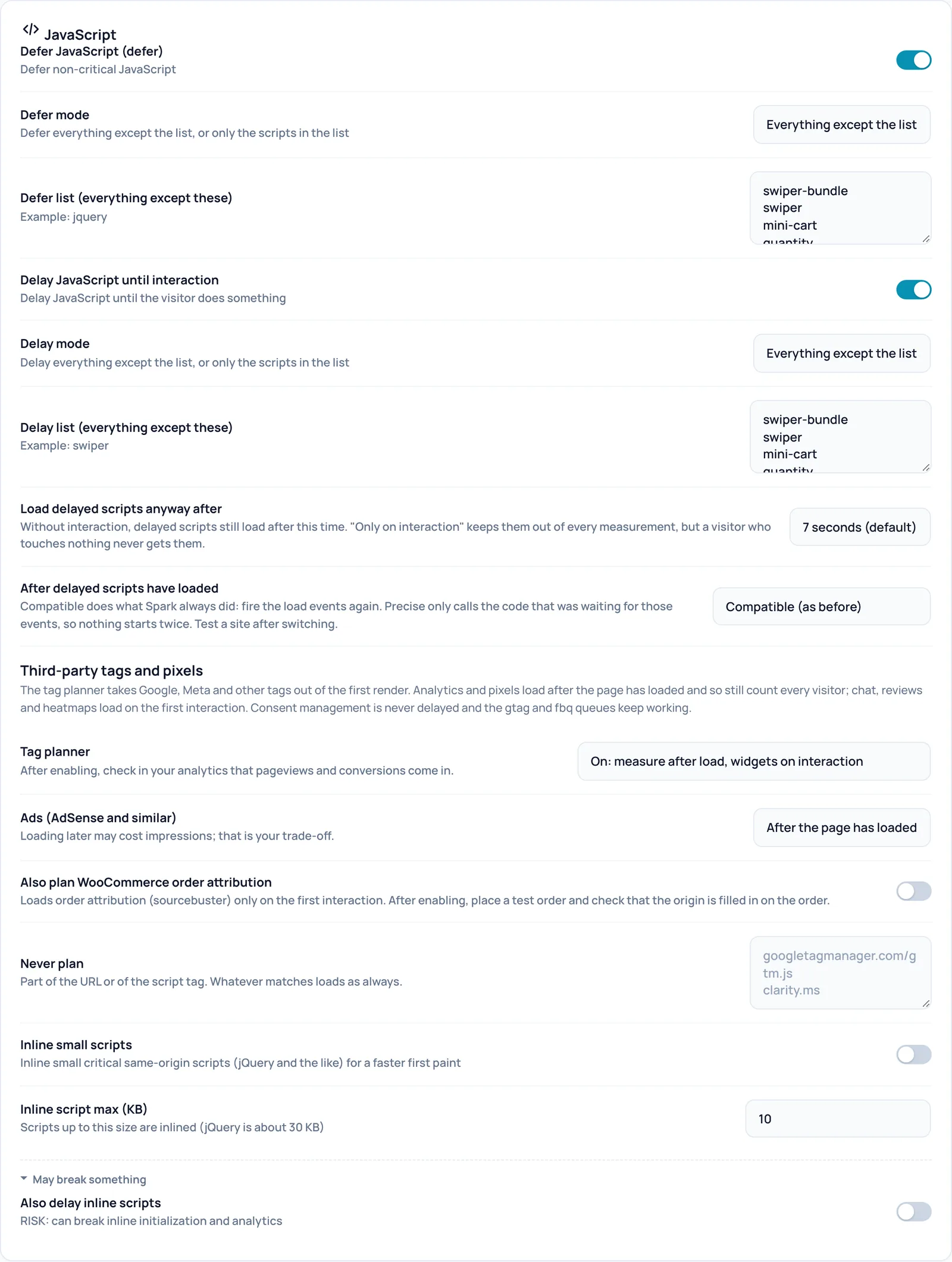
Defer JavaScript (defer)
- What it does
- Gives external scripts the defer attribute. They then load in the background and only run once the page has been built, so they do not hold up the first render.
- When to switch it on or off
- On for almost every site, together with the exception list below.
- Requirements
- The main switch Optimization on is on and Safe mode is off.
- How to check the effect
- Open the page in a private window (logged out, because nothing is optimized for logged-in users), wait until the cache has been refreshed and view the page source (Ctrl+U or Cmd+Option+U). Script tags then carry the word defer.
- Example
- A site with Breakdance and WooCommerce: everything deferred except jQuery and the scripts in the list.
- Watch out
- Scripts that must run in a fixed order can break. That is why the defer list exists.
- How to undo
- Switch it back and click Save settings at the bottom of the page. The cache is then rebuilt in the background. If you switch it off yourself, Spark remembers that and Optimize my site will not switch it back on by itself.
- Technical name
defer_js
Defer mode
- What it does
- Everything except the list: every script is deferred except those in the list. Only the scripts in the list: only listed scripts are deferred; an empty list then means nothing.
- Requirements
- Defer JavaScript (defer) is on.
- Watch out
- If you switch to Only the scripts in the list without changing the list, the protected scripts (such as jQuery) are deferred instead. Rewrite the list when you switch.
- How to undo
- Choose Everything except the list and save.
- Technical name
defer_mode
Defer list (everything except these)
- What it does
- One fragment per line. A script whose tag contains this fragment (file name or path, case does not matter) falls under the list. In the default mode these scripts are not deferred and run as always. The list title changes with the mode.
- How to check the effect
- The script in the page source has no defer.
- Example
- jquery
- Watch out
- Do not simply remove jquery: pages still look fine, but buttons and menus can quietly stop working. Spark then shows a yellow warning if inline scripts call jQuery right away.
- How to undo
- Put the line back and save.
- Technical name
defer_exclude
Delay JavaScript until interaction
- What it does
- Holds scripts back until the visitor does something (scroll, tap, move the mouse, press a key) or until the set time has passed. Spark then loads them in the right order and replays a click that happened while loading. This removes a lot of work from the first seconds.
- When to switch it on or off
- On after testing, or let Optimize my site decide with a browser check.
- Requirements
- The main switch Optimization on is on and Safe mode is off. If a Content-Security-Policy forbids inline scripts, Spark falls back to plain defer.
- How to check the effect
- Open the page in a private window (logged out, because nothing is optimized for logged-in users), wait until the cache has been refreshed and view the page source (Ctrl+U or Cmd+Option+U). Delayed scripts have type="spark-delay" and spark-delay-runtime appears at the bottom.
- Example
- Delay everything except the list; scripts load on the first scroll or after 7 seconds.
- Watch out
- Menus, sliders and cart buttons that rely on scripts must be in the delay list. Test on mobile.
- How to undo
- Switch it back and click Save settings at the bottom of the page. The cache is then rebuilt in the background. If you switch it off yourself, Spark remembers that and Optimize my site will not switch it back on by itself.
- Technical name
delay_js
Delay mode
- What it does
- Everything except the list: everything waits except what is in the list. Only the scripts in the list: only the listed scripts wait. Optimize my site also uses that second mode to delay specific heavy scripts.
- Requirements
- Delay JavaScript until interaction is on.
- Watch out
- If you switch modes without changing the list, the scripts that were meant to be protected are delayed instead.
- How to undo
- Choose Everything except the list and save.
- Technical name
delay_mode
Delay list (everything except these)
- What it does
- One fragment per line. A script whose tag contains this fragment (file name or path, case does not matter) falls under the list. The content of inline scripts also counts here. In the default mode these scripts run right away as always.
- Example
- swiper
- Watch out
- A very short fragment, such as two letters, can match far more scripts than you intend.
- How to undo
- Remove or restore the line and save.
- Technical name
delay_exclude
Load delayed scripts anyway after
- What it does
- After how many seconds without interaction the delayed scripts load anyway: 3, 5, 7, 10 or 15 seconds, or Only on interaction. The same time applies to the tag planner's widgets.
- Requirements
- Delay JavaScript until interaction or the tag planner is on.
- How to check the effect
- In the page source the time appears in milliseconds on spark-delay-runtime, for example data-timeout="7000".
- Watch out
- Only on interaction keeps scripts out of every measurement, but a visitor who touches nothing never gets them, including analytics scripts.
- How to undo
- Choose 7 seconds (default) and save.
- Technical name
delay_timeout
After delayed scripts have loaded
- What it does
- Delayed scripts miss the moments when the page reports it is ready. Compatible fires those moments again for the whole page. Precise only calls the code that was waiting for them, so nothing starts twice.
- When to switch it on or off
- Choose Precise if a slider or popup starts twice after delaying.
- Requirements
- Delay JavaScript until interaction is on.
- Watch out
- Test the site after switching.
- How to undo
- Choose Compatible (as before) and save.
- Technical name
delay_lifecycle
Tag planner
- What it does
- Takes third-party tags out of the first render. With On: measure after load, widgets on interaction analytics and pixels (such as Google Tag Manager, Google Analytics and the Meta pixel) load after the page has loaded and so still count every visitor; chat, reviews and heatmaps load on the first interaction. Everything on the first interaction makes all known tags wait. Consent management is never delayed.
- When to switch it on or off
- Set it to On when third-party tags slow your site on mobile.
- Requirements
- The main switch Optimization on is on and Safe mode is off.
- How to check the effect
- After enabling, check in your analytics (for example the Google Analytics realtime view) that pageviews and conversions come in. The page source contains spark-tag-planner.
- Example
- A shop with Tag Manager and the Meta pixel: choose On and check the figures the next day.
- Watch out
- With Everything on the first interaction a visitor who leaves before touching anything or before the wait time ends is not counted.
- How to undo
- Choose Off and save.
- Technical name
tag_planner
Ads (AdSense and similar)
- What it does
- Decides when ad scripts load while the tag planner is set to On: after the page has loaded or on the first interaction. In the Everything on the first interaction mode ads always wait.
- Requirements
- The tag planner is not set to Off.
- Watch out
- Loading later may cost impressions and therefore revenue. That is your trade-off.
- How to undo
- Choose After the page has loaded and save.
- Technical name
tag_planner_ads
Also plan WooCommerce order attribution
- What it does
- WooCommerce records where a customer came from with each order (order attribution). With this switch that script only loads on the first interaction.
- Requirements
- The tag planner is not set to Off and WooCommerce uses order attribution.
- How to check the effect
- After enabling, place a test order and check in WooCommerce that the order's origin is filled in.
- How to undo
- Switch it back and click Save settings at the bottom of the page. The cache is then rebuilt in the background.
- Technical name
tag_planner_attributie
Never plan
- What it does
- A list of fragments of a URL or script tag, one per line. A script tag in the page source that contains such a fragment is left alone by the tag planner; it loads as always.
- Requirements
- The tag planner is not set to Off.
- How to check the effect
- The script tag stays a normal tag in the page source, without spark-tag.
- Example
- clarity.ms
- Watch out
- After adding an entry, check in your browser's network panel that the script really loads right away. Tags injected by another script (such as Tag Manager) do not appear as a tag in the page source.
- How to undo
- Remove the line and save.
- Technical name
tag_planner_exclude
Inline small scripts
- What it does
- Puts small scripts from your own site directly in the page instead of as a separate file. That saves a request for small, important scripts.
- Requirements
- The main switch Optimization on is on and Safe mode is off.
- How to check the effect
- Open the page in a private window (logged out, because nothing is optimized for logged-in users), wait until the cache has been refreshed and view the page source (Ctrl+U or Cmd+Option+U). Inlined scripts carry the attribute data-spark-inlined-src.
- Watch out
- Inlined scripts are not stored separately by the browser and make every page a little heavier.
- How to undo
- Switch it back and click Save settings at the bottom of the page. The cache is then rebuilt in the background.
- Technical name
inline_js
Inline script max (KB)
- What it does
- The maximum size in kilobytes of a script that may be inlined. Allowed is 1 to 200.
- Requirements
- Inline small scripts is on.
- Watch out
- A high value makes every page heavier.
- How to undo
- Set the value to 10 and save.
- Technical name
inline_js_max_kb
Also delay inline scripts
- What it does
- Besides separate script files, also delays scripts that sit directly in the page, such as slider settings or analytics snippets.
- When to switch it on or off
- Only as a last step and after testing. On the test site Optimize my site rejected this step because new errors appeared in the browser console.
- Requirements
- Delay JavaScript until interaction is on.
- Watch out
- Can break inline initialisation and analytics.
- How to undo
- Switch it back and click Save settings at the bottom of the page. The cache is then rebuilt in the background. If you switch it off yourself, Spark remembers that and Optimize my site will not switch it back on by itself.
- Technical name
delay_inline
Fonts
Settings for web fonts and icons. Fonts often decide how quickly text becomes readable and whether the page still shifts.
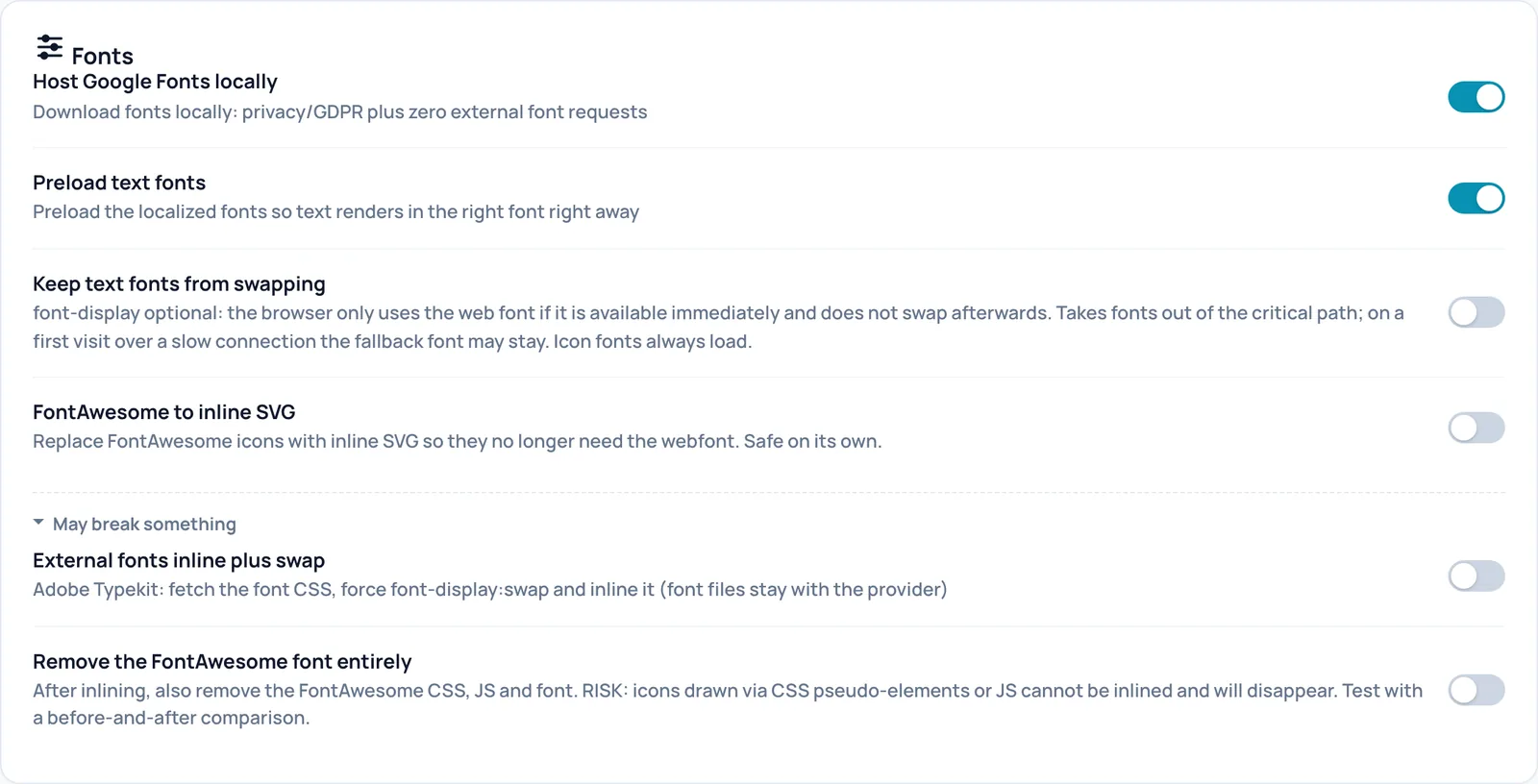
Host Google Fonts locally
- What it does
- Downloads Google Fonts to your own site and serves them from there. Visitors then no longer connect to Google for fonts. That is better for privacy (GDPR) and saves external requests.
- Requirements
- The main switch Optimization on is on and Safe mode is off. WP-Cron must run: downloading happens in the background, never during a visit.
- How to check the effect
- After the next cache rebuild the page source contains spark-fonts and fonts point to /wp-content/uploads/spark-speed/fonts/ instead of fonts.googleapis.com.
- Watch out
- On the first build the Google link is still there; the local version appears on a later build. A font that cannot be downloaded keeps coming from Google.
- How to undo
- Switch it back and click Save settings at the bottom of the page. The cache is then rebuilt in the background. If you switch it off yourself, Spark remembers that and Optimize my site will not switch it back on by itself. The downloaded files stay on the server.
- Technical name
self_host_fonts
Preload text fonts
- What it does
- Lets the browser fetch the locally hosted text fonts early, so text appears in the right font right away. In version 0.73.2 this only happens for pages with a valid measurement in Measured choices; without a measurement Spark preloads nothing, because a wrong guess makes the page slower.
- Requirements
- Host Google Fonts locally is on, pages are cached per device, and there is a valid font measurement for the page.
- How to check the effect
- The page source then contains a line with rel="preload" as="font".
- How to undo
- Switch it back and click Save settings at the bottom of the page. The cache is then rebuilt in the background.
- Technical name
preload_fonts
Keep text fonts from swapping
- What it does
- Sets font-display to optional: the browser only uses the web font if it is available immediately and does not swap afterwards. Text no longer jumps from one font to another, and fonts no longer hold up the page. Icon fonts always load.
- Requirements
- Merge and inline CSS is on.
- How to check the effect
- In the CSS block in the page source, font-display:optional appears on the text fonts.
- Watch out
- On a first visit over a slow connection the fallback font may stay for that page view.
- How to undo
- Switch it back and click Save settings at the bottom of the page. The cache is then rebuilt in the background.
- Technical name
font_display_optional
FontAwesome to inline SVG
- What it does
- Replaces FontAwesome icons with small images in the page (SVG), so they no longer need the icon font. Icons Spark does not recognise simply stay icon font.
- Requirements
- The main switch Optimization on is on and Safe mode is off.
- How to check the effect
- Open the page in a private window (logged out, because nothing is optimized for logged-in users), wait until the cache has been refreshed and view the page source (Ctrl+U or Cmd+Option+U). Icons appear as svg-inline--fa.
- Watch out
- Each icon makes the HTML a little larger.
- How to undo
- Switch it back and click Save settings at the bottom of the page. The cache is then rebuilt in the background.
- Technical name
icon_optimize
External fonts inline plus swap
- What it does
- For Adobe Fonts (Typekit): Spark fetches the font CSS, sets font-display:swap and puts it in the page. Text is then readable right away. The font files themselves stay with Adobe.
- Requirements
- The main switch Optimization on is on and Safe mode is off.
- How to check the effect
- The page source contains spark-remote-font instead of the Typekit link.
- Watch out
- Spark refreshes the fetched CSS at most once a day. If you change your Adobe project, it can take a while before the site shows it.
- How to undo
- Switch it back and click Save settings at the bottom of the page. The cache is then rebuilt in the background.
- Technical name
inline_remote_fonts
Remove the FontAwesome font entirely
- What it does
- After converting to SVG, also removes the FontAwesome CSS, script and font.
- Requirements
- FontAwesome to inline SVG is on.
- How to check the effect
- Compare the page before and after: all icons must still be visible and the FontAwesome stylesheet is no longer in the page source.
- Watch out
- Icons drawn via CSS or JavaScript cannot be converted and then disappear.
- How to undo
- Switch it back and click Save settings at the bottom of the page. The cache is then rebuilt in the background.
- Technical name
icon_drop_font
Media
Settings for images, backgrounds and animations. The Mobile above the fold block holds targeted changes for the first render on phones; each is off by default.
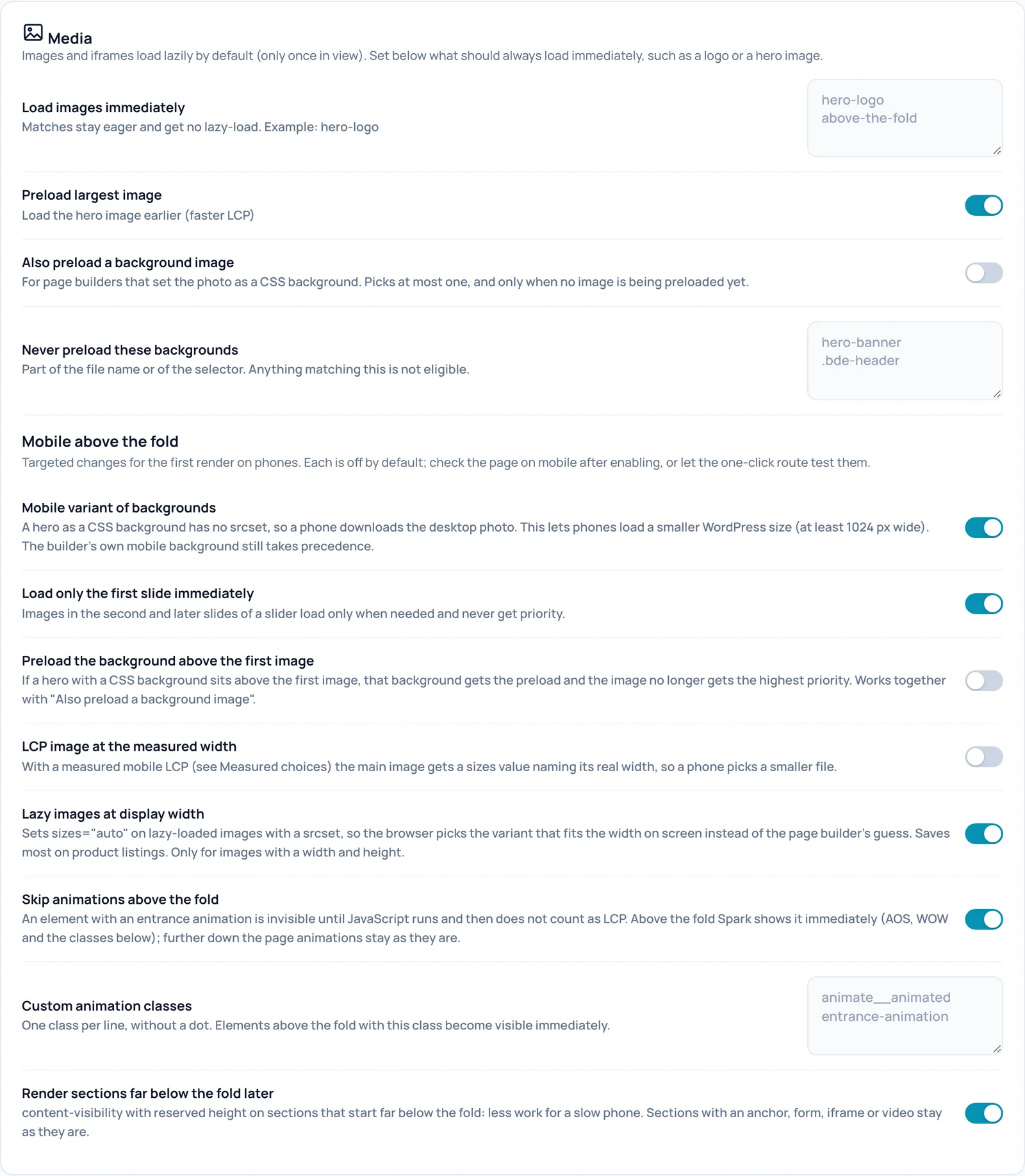
Load images immediately
- What it does
- Images and iframes load lazily by default: only once they come into view. This list holds text fragments, one per line; an image whose tag contains such a fragment (file name, class, alt text) always loads immediately.
- When to switch it on or off
- Add to it if your logo or an important image at the top appears too late.
- How to check the effect
- Open the page in a private window (logged out, because nothing is optimized for logged-in users), wait until the cache has been refreshed and view the page source (Ctrl+U or Cmd+Option+U). The image has loading="eager" instead of loading="lazy".
- Example
- hero-logo
- Watch out
- A fragment that is too broad, such as "img", turns lazy loading off for almost everything and costs bandwidth. Lazy loading itself has no switch on this screen.
- How to undo
- Remove the line and save.
- Technical name
lazy_exclude
Preload largest image
- What it does
- Finds the largest real image at the top of the page, usually the hero, and lets the browser fetch it first. That speeds up the LCP: the moment the largest element becomes visible.
- Requirements
- The main switch Optimization on is on and Safe mode is off.
- How to check the effect
- Open the page in a private window (logged out, because nothing is optimized for logged-in users), wait until the cache has been refreshed and view the page source (Ctrl+U or Cmd+Option+U). The head contains a link with rel="preload" as="image" and the image has fetchpriority="high".
- Watch out
- A hero set as a CSS background is not covered here; use the next switch for that.
- How to undo
- Switch it back and click Save settings at the bottom of the page. The cache is then rebuilt in the background. If you switch it off yourself, Spark remembers that and Optimize my site will not switch it back on by itself.
- Technical name
preload_lcp
Also preload a background image
- What it does
- For page builders that set the hero photo as a CSS background. Spark picks at most one background from the main content and preloads it, but only when no image is being preloaded yet.
- How to check the effect
- The head contains a preload link to the background image.
- Example
- A Breakdance home page with a section with a background photo at the top.
- Watch out
- Spark picks by order in the HTML, not by what is really visible at the top. Check the page on mobile.
- How to undo
- Switch it back and click Save settings at the bottom of the page. The cache is then rebuilt in the background. If you switch it off yourself, Spark remembers that and Optimize my site will not switch it back on by itself.
- Technical name
preload_lcp_background
Never preload these backgrounds
- What it does
- Fragments of a file name or selector, one per line. Backgrounds that match are not eligible for preloading, the mobile variant or priority over the first image.
- Example
- hero-banner
- Watch out
- A short fragment can exclude more than you intend.
- How to undo
- Remove the line and save.
- Technical name
preload_bg_exclude
Mobile variant of backgrounds
- What it does
- A background photo has no smaller variants like a normal image, so a phone downloads the large desktop photo. This switch lets phones load a smaller WordPress size, at least 1024 pixels wide. Your builder's own mobile background takes precedence.
- When to switch it on or off
- This change is off by default. Check the page on mobile after enabling it, or let Optimize my site test it.
- Requirements
- WordPress must have generated smaller sizes of the photo.
- How to check the effect
- The page source contains spark-responsive-bg; in your browser's mobile view a smaller photo loads.
- How to undo
- Switch it back and click Save settings at the bottom of the page. The cache is then rebuilt in the background. If you switch it off yourself, Spark remembers that and Optimize my site will not switch it back on by itself.
- Technical name
responsive_backgrounds
Load only the first slide immediately
- What it does
- Images in the second and later slides of a slider load only when needed and never get priority. The first slide stays as it was.
- When to switch it on or off
- This change is off by default. Check the page on mobile after enabling it, or let Optimize my site test it.
- Watch out
- With a slider that advances quickly on its own, the second image may appear slightly later.
- How to undo
- Switch it back and click Save settings at the bottom of the page. The cache is then rebuilt in the background. If you switch it off yourself, Spark remembers that and Optimize my site will not switch it back on by itself.
- Technical name
slider_first_only
Preload the background above the first image
- What it does
- If a hero with a CSS background sits above the first image, that background gets the priority and the image no longer does.
- When to switch it on or off
- This change is off by default. Check the page on mobile after enabling it, or let Optimize my site test it.
- Requirements
- Also preload a background image is on.
- How to undo
- Switch it back and click Save settings at the bottom of the page. The cache is then rebuilt in the background. If you switch it off yourself, Spark remembers that and Optimize my site will not switch it back on by itself.
- Technical name
lcp_background_first
LCP image at the measured width
- What it does
- With a measured mobile LCP from Measured choices the main image gets a size hint naming its real width on the phone. The phone then picks a smaller file.
- Requirements
- Preload largest image is on, pages are cached per device and there is a valid measurement for the page. Without a measurement nothing happens.
- How to check the effect
- In the page source the main image has a sizes value starting with (max-width:767px).
- How to undo
- Switch it back and click Save settings at the bottom of the page. The cache is then rebuilt in the background.
- Technical name
lcp_sizes
Lazy images at display width
- What it does
- Sets sizes="auto" on lazy images with multiple sizes, so the browser picks the size that fits the real width on screen instead of the page builder's guess. Saves most on product listings.
- When to switch it on or off
- This change is off by default. Check the page on mobile after enabling it, or let Optimize my site test it.
- Requirements
- Only for images with a width and height.
- How to check the effect
- Lazy images have sizes="auto, ..." in the page source.
- How to undo
- Switch it back and click Save settings at the bottom of the page. The cache is then rebuilt in the background. If you switch it off yourself, Spark remembers that and Optimize my site will not switch it back on by itself.
- Technical name
lazy_sizes_auto
Skip animations above the fold
- What it does
- An element with an entrance animation is invisible until JavaScript runs. At the top of the page Spark shows such elements immediately (AOS, WOW and the classes in the list below). Further down the page animations stay as they are.
- When to switch it on or off
- This change is off by default. Check the page on mobile after enabling it, or let Optimize my site test it.
- Watch out
- The designer loses the chosen entrance animation at the top.
- How to undo
- Switch it back and click Save settings at the bottom of the page. The cache is then rebuilt in the background. If you switch it off yourself, Spark remembers that and Optimize my site will not switch it back on by itself.
- Technical name
above_fold_visible
Custom animation classes
- What it does
- One class per line, without a dot. Elements at the top of the page with this class become visible immediately.
- Requirements
- Skip animations above the fold is on.
- Example
- animate__animated
- Watch out
- Do not list a class that hides something on purpose, such as a closed popup: it would become visible.
- How to undo
- Remove the line and save.
- Technical name
above_fold_classes
Render sections far below the fold later
- What it does
- Lets the browser work out sections that start far below the first screen only when they come near (content-visibility), with a reserved height. Less work for a slow phone. Sections with an anchor, form, iframe or video stay as they are.
- When to switch it on or off
- This change is off by default. Check the page on mobile after enabling it, or let Optimize my site test it.
- How to check the effect
- Sections carry the attribute data-spark-cv in the page source.
- Watch out
- The scrollbar can jump a little while scrolling, because the height is estimated in advance.
- How to undo
- Switch it back and click Save settings at the bottom of the page. The cache is then rebuilt in the background. If you switch it off yourself, Spark remembers that and Optimize my site will not switch it back on by itself.
- Technical name
content_visibility
WordPress
Standard WordPress parts most sites do not need. The switches at the top are almost always safe; the two under May break something can affect functionality.
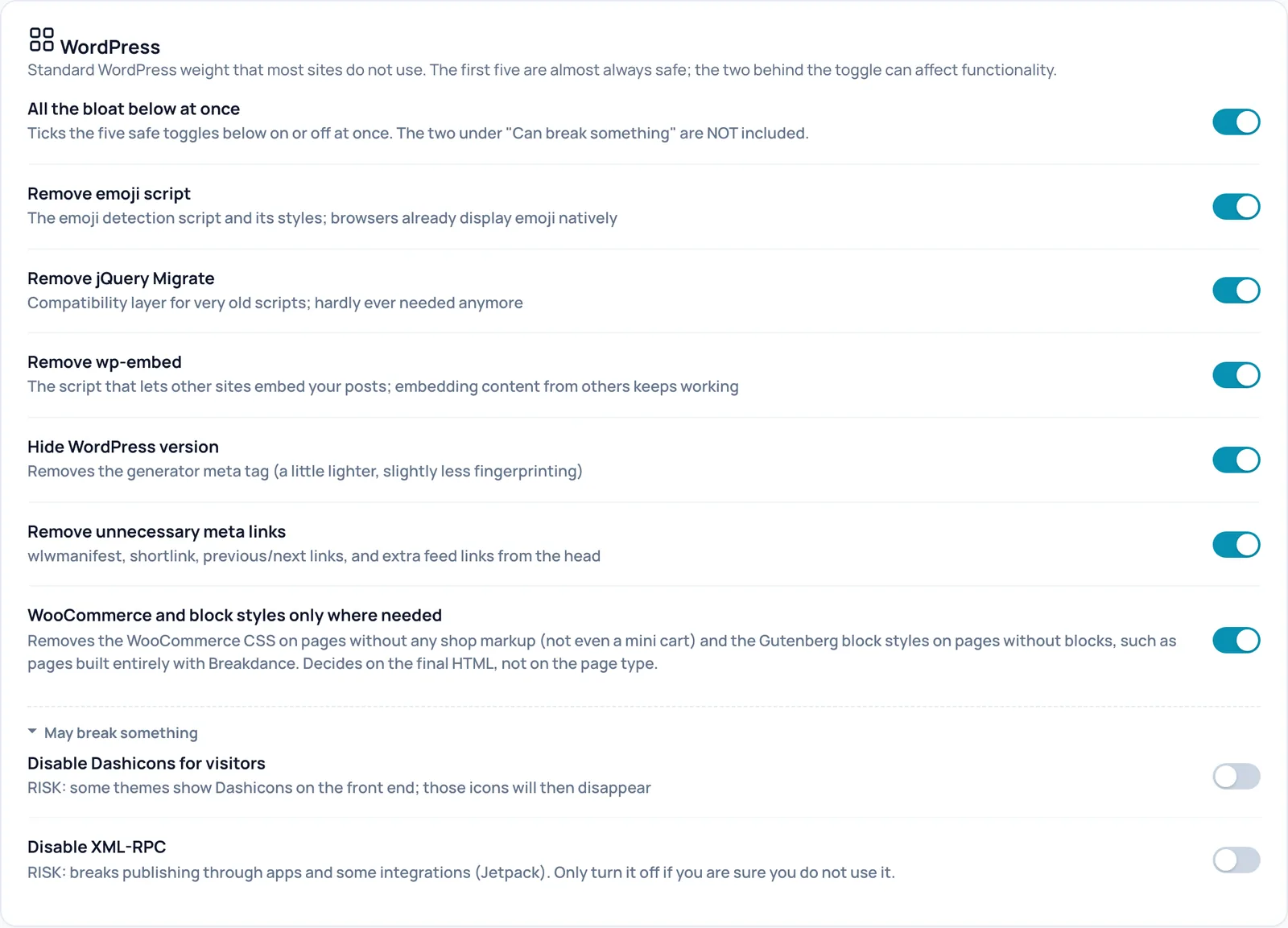
All the bloat below at once
- What it does
- Ticks the five safe switches below on or off at once, directly in your browser. What counts after Save settings is the state of those five switches. The two under May break something and the switch for WooCommerce and block styles are not included.
- Watch out
- This switch does not always reflect the state of the five below. Look at the individual switches.
- Technical name
remove_bloat
Remove emoji script
- What it does
- Removes the emoji detection script and its styles. Modern browsers display emoji themselves.
- How to check the effect
- The page source no longer contains wp-emoji-release.min.js.
- Watch out
- Very old browsers without native emoji lose the fallback.
- How to undo
- Switch it back and click Save settings at the bottom of the page. The cache is then rebuilt in the background. If you switch it off yourself, Spark remembers that and Optimize my site will not switch it back on by itself.
- Technical name
bloat_emoji
Remove jQuery Migrate
- What it does
- Removes jQuery Migrate, a compatibility layer for very old scripts.
- How to check the effect
- The page source no longer contains jquery-migrate.
- Watch out
- An outdated plugin can then throw errors in the browser console. Switch it off in that case.
- How to undo
- Switch it back and click Save settings at the bottom of the page. The cache is then rebuilt in the background. If you switch it off yourself, Spark remembers that and Optimize my site will not switch it back on by itself.
- Technical name
bloat_jquery_migrate
Remove wp-embed
- What it does
- Removes the script that lets other sites embed your posts as a card. Embedding content from others keeps working.
- When to switch it on or off
- Switch off if other sites embed your posts.
- How to check the effect
- The page source no longer contains wp-embed.min.js.
- How to undo
- Switch it back and click Save settings at the bottom of the page. The cache is then rebuilt in the background. If you switch it off yourself, Spark remembers that and Optimize my site will not switch it back on by itself.
- Technical name
bloat_embeds
Hide WordPress version
- What it does
- Removes the generator meta tag with your WordPress version: slightly lighter and slightly less recognisable to scanners.
- How to check the effect
- The page source no longer contains meta name="generator".
- Watch out
- The version can still be found in other places; this is not security on its own.
- How to undo
- Switch it back and click Save settings at the bottom of the page. The cache is then rebuilt in the background. If you switch it off yourself, Spark remembers that and Optimize my site will not switch it back on by itself.
- Technical name
bloat_wp_version
Remove unnecessary meta links
- What it does
- Removes wlwmanifest, the shortlink, previous/next links and extra feed links from the head. The main feed stays.
- How to check the effect
- The head of the page source no longer has shortlink or wlwmanifest lines.
- Watch out
- Services that rely on WordPress shortlinks no longer get that link.
- How to undo
- Switch it back and click Save settings at the bottom of the page. The cache is then rebuilt in the background. If you switch it off yourself, Spark remembers that and Optimize my site will not switch it back on by itself.
- Technical name
bloat_meta_links
WooCommerce and block styles only where needed
- What it does
- Removes the WooCommerce CSS on pages without any shop markup (not even a mini cart) and the Gutenberg block styles on pages without blocks, such as pages built entirely with Breakdance. Spark decides on the final HTML, not on the page type.
- How to check the effect
- On such a page woocommerce-general and wp-block-library no longer appear in the page source.
- Watch out
- Although this switch sits above the collapsible block, Optimize my site treats it as risky and checks it first. A theme can rely on these styles; look at a few pages after switching it on.
- How to undo
- Switch it back and click Save settings at the bottom of the page. The cache is then rebuilt in the background. If you switch it off yourself, Spark remembers that and Optimize my site will not switch it back on by itself.
- Technical name
contextual_css
Disable Dashicons for visitors
- What it does
- No longer loads the Dashicons icon font for logged-out visitors.
- How to check the effect
- View your site as a logged-out visitor and check that all icons are still there.
- Watch out
- Some themes show Dashicons on the front end; those icons then disappear. Optimize my site never switches this on by itself, because its check runs logged in.
- How to undo
- Switch it back and click Save settings at the bottom of the page. The cache is then rebuilt in the background.
- Technical name
bloat_dashicons
Disable XML-RPC
- What it does
- Disables XML-RPC, an old interface that apps and some services use to publish posts on your site. The related references in the head disappear too.
- Watch out
- Breaks publishing through apps and some integrations, such as Jetpack. Only switch it on if you are sure you do not use it.
- How to undo
- Switch it back and click Save settings at the bottom of the page. The cache is then rebuilt in the background.
- Technical name
bloat_xmlrpc
WooCommerce
Two changes specifically for shops. This card only appears when WooCommerce is active.
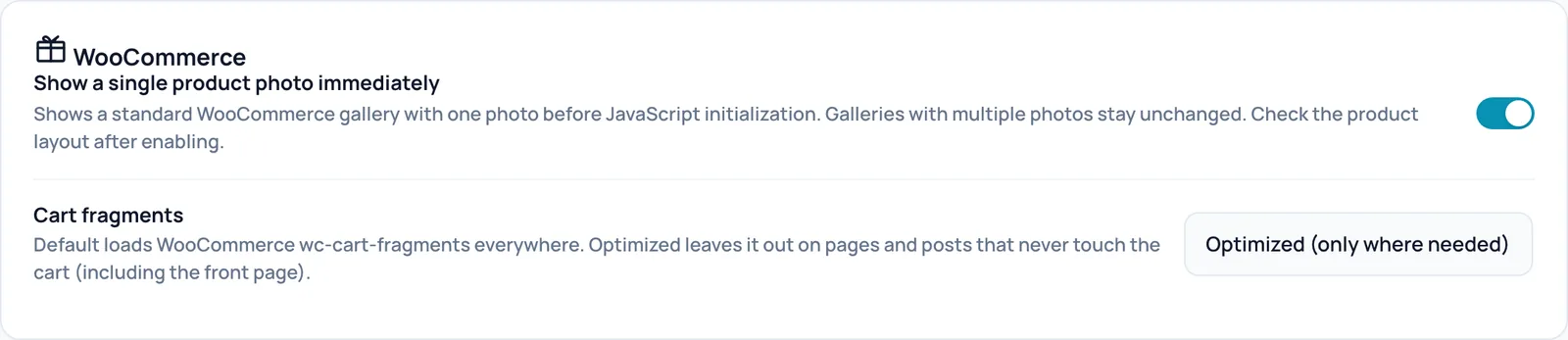
Show a single product photo immediately
- What it does
- WooCommerce keeps the product gallery invisible until its JavaScript is ready. If a product has only one photo in the standard gallery, Spark shows it right away. Galleries with multiple photos stay unchanged.
- How to check the effect
- Open a product with one photo: the photo is there right away. The page source contains spark-woo-single-image-early.
- Watch out
- Check the product layout after enabling.
- How to undo
- Switch it back and click Save settings at the bottom of the page. The cache is then rebuilt in the background.
- Technical name
woo_single_image_early
Cart fragments
- What it does
- By default WooCommerce loads a script that updates the cart everywhere (wc-cart-fragments). Optimized (only where needed) leaves it out on pages and posts that never touch the cart, including the front page. Shop, product pages, cart, checkout and account keep it.
- How to check the effect
- On a normal page the cart fragments script is gone and the browser no longer requests get_refreshed_fragments.
- Watch out
- If you have a mini cart in the header of normal pages, test whether the product count is correct.
- How to undo
- Choose Default (load everywhere) and save.
- Technical name
woo_cart_fragments
Safety check
Two safety nets around the optimizations: a stricter requirement for Optimize my site and a way to catch pages that break for real visitors.
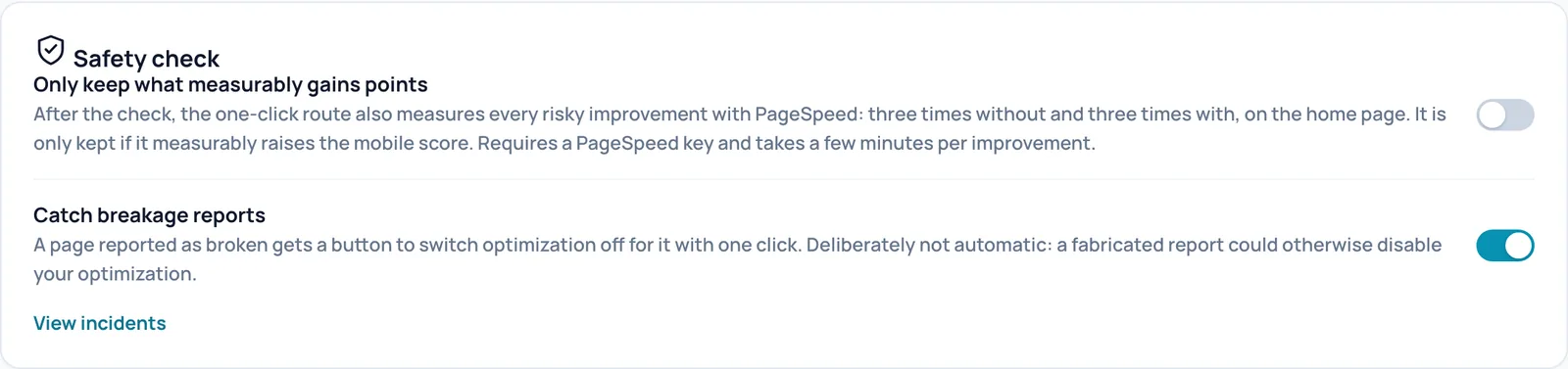
Only keep what measurably gains points
- What it does
- An extra requirement for Optimize my site: every risky improvement that passes the browser check is also measured with PageSpeed, three times without and three times with, on the home page. It is only kept if the mobile score measurably rises.
- When to switch it on or off
- On when you only want to keep changes that prove their worth, for example on a client site.
- Requirements
- A PageSpeed key (entered under Settings), a site that is reachable from the internet and a valid licence. If anything is missing, the switch stays on but this step is skipped.
- Watch out
- A run takes a few minutes longer per improvement and uses PageSpeed quota. An improvement can also be dropped because measurement noise hides the gain.
- How to undo
- Switch it back and click Save settings at the bottom of the page. The cache is then rebuilt in the background. Improvements applied earlier stay in place.
- Technical name
optimizer_meetpoort
Catch breakage reports
- What it does
- Puts a small guard into optimized pages. If a visitor's browser sees a script error from your own site shortly after loading while the page is clearly collapsed, it sends an anonymous report. After six independent reports for the same page, that page appears under the incidents with a button to switch optimization off for it with one click.
- When to switch it on or off
- Leave it on.
- How to check the effect
- The page source contains spark-sentinel.
- Watch out
- Deliberately not automatic: a fabricated report could otherwise disable your optimization. A page that looks fine but behaves wrongly (a button that does nothing) is not reported. An AI proposal cannot change this switch.
- How to undo
- Switch it back and click Save settings at the bottom of the page. The cache is then rebuilt in the background.
- Technical name
auto_rollback
View incidents
- What it does
- Opens Diagnostics, Log. There you find pages with enough reports and pages that are served unprocessed after your confirmation.
- Watch out
- If no page has six or more reports, there is no incident card there either. That is good news.
Measure real visitors
Here you switch on a lightweight measurement for real visitors. It shows whether your site is also fast outside a lab test.
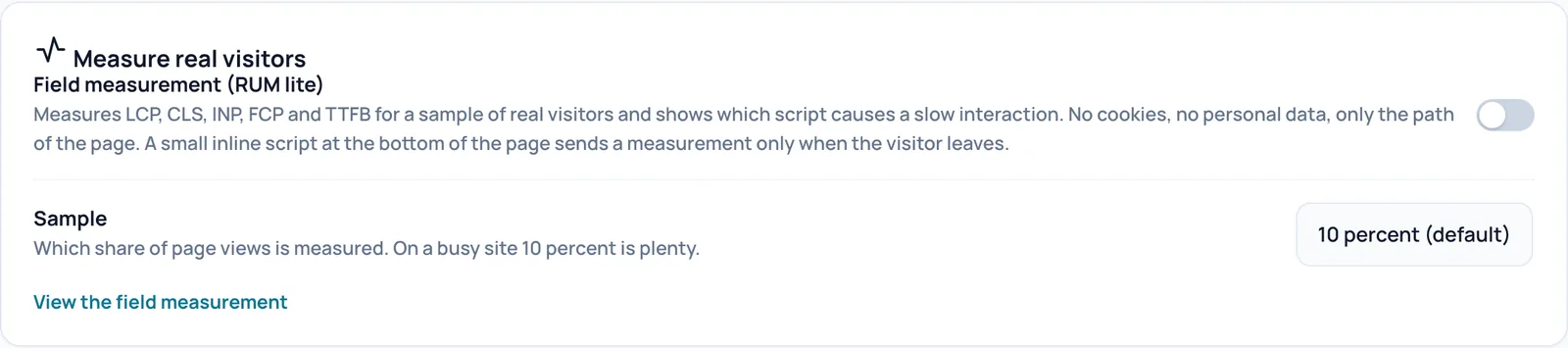
Field measurement (RUM lite)
- What it does
- Measures speed for real visitors (RUM: real user monitoring): LCP, CLS, INP, FCP and TTFB for a sample of page views. You also see which script causes a slow click or tap. A small script at the bottom of the page only sends the measurement when the visitor leaves the page.
- When to switch it on or off
- On when you want to know how fast your site is for real visitors, not just in a lab test.
- Requirements
- Works on cached pages, for logged-out visitors.
- How to check the effect
- The page source contains spark-rum. Results appear under Diagnostics, Optimization once enough visitors have come by.
- Watch out
- No cookies and no personal data: only the path of the page is stored. If your URLs contain names or other details, those are part of that path. Measurements are kept for 28 days.
- How to undo
- Switch it back and click Save settings at the bottom of the page. The cache is then rebuilt in the background.
- Technical name
rum
Sample
- What it does
- Which share of page views is measured: 1, 5, 10, 25 or 50 percent, or every page view.
- When to switch it on or off
- On a busy site 10 percent is plenty. On a quiet site choose a higher percentage temporarily to get enough measurements sooner.
- Requirements
- Field measurement (RUM lite) is on.
- How to check the effect
- In the page source the percentage appears on spark-rum as data-sample.
- How to undo
- Choose 10 percent (default) and save.
- Technical name
rum_sample
View the field measurement
- What it does
- Opens Diagnostics, Optimization, where the results are shown per device, with the slowest pages and the scripts that most often cause a slow interaction.
Measured choices
This card sits outside the settings form. It shows which administrator measurements currently take priority over Spark's automatic choice.
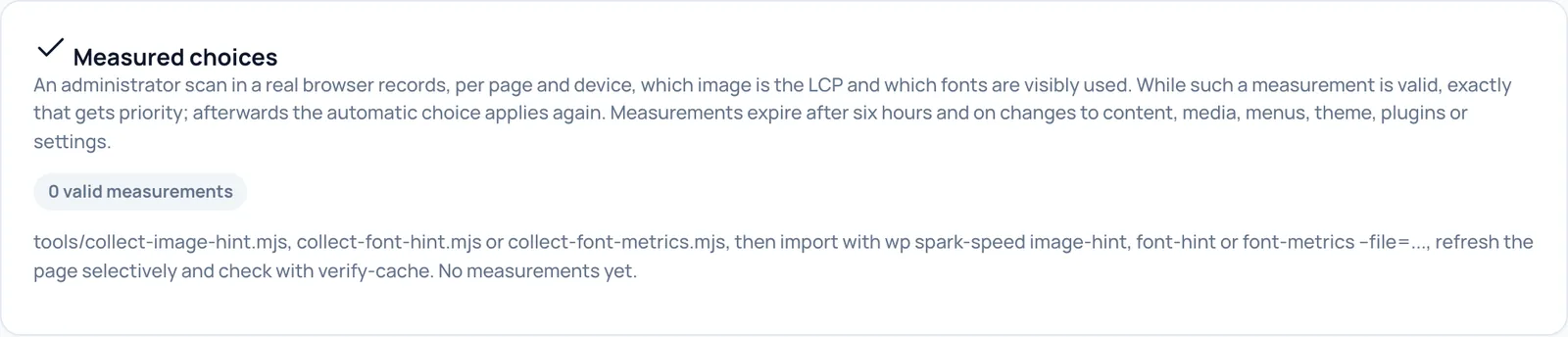
Valid measurements
- What it does
- Shows how many valid measurements there are, for example 0 valid measurements. A measurement is a scan by an administrator in a real browser that records, per page and device, which image is the LCP and which fonts are visibly used. While a measurement is valid, exactly that gets priority; afterwards the automatic choice applies again.
- Requirements
- Measurements are imported with WP-CLI, the WordPress command line, using the commands shown in the card. This is meant for developers and agencies.
- How to check the effect
- After an import the measurement appears as a row in this card, with the page, the kind of measurement, the device and how long it is valid.
- Watch out
- Measurements expire after six hours and on changes to content, media, menus, theme, plugins or settings, and also on a full cache clear. On an active site they are short-lived. Without measurements everything simply works with the automatic choice.
Image optimization through Spark Media Optimizer
At the bottom of the screen is a pointer to Spark Media Optimizer, the plugin for compressing and converting images.
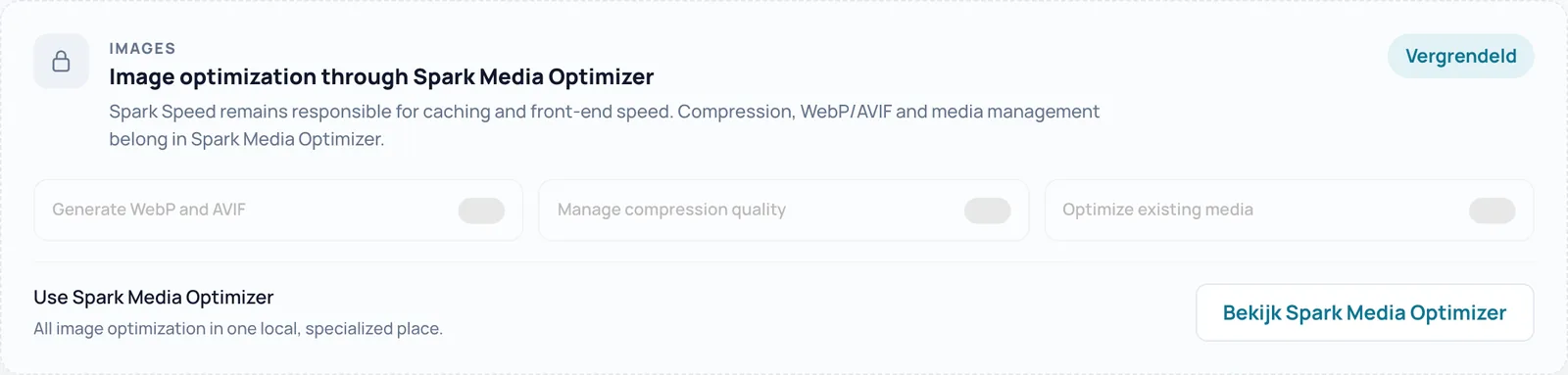
Vergrendeld (Locked)
- What it does
- Spark Speed handles caching and front-end speed. Compression, WebP/AVIF and media management belong to the separate plugin Spark Media Optimizer. The Vergrendeld label and the grey switches (Generate WebP and AVIF, Manage compression quality, Optimize existing media) show what that plugin does; you cannot operate them here.
- Watch out
- In the English interface the label is shown in Dutch (Vergrendeld, meaning locked). Spark Speed 0.73.2 has no switch of its own for WebP conversion.
Bekijk Spark Media Optimizer (View Spark Media Optimizer)
- What it does
- Opens the Spark Media Optimizer page on sparkcore.io in a new tab.
- Watch out
- This button is also shown in Dutch in the English interface.
Unsure about a step? Revert, check your site and ask us through the contact page.
No Spark Speed yet? See what it does and what it costs.
Frequently asked questions
View the site in a private window: nothing is optimized for logged-in users. Pages that were already cached only get the change once they are rebuilt. Also check that Optimization on is on and Safe mode is off. Some switches show a line starting with Switched on but doing nothing that names the reason.
Switch the last changed setting back and save. Usually delaying JavaScript is the cause: add the menu or cart script to the delay list. To rule everything out quickly, switch on Safe mode and clear the cache.
On this screen you set everything by hand. Optimize my site on the Overview switches on safe improvements directly and first checks risky improvements on real pages of your site, on mobile and desktop. Keep the admin screen open while that run is going.
The AI works with the rights of the administrator who created the connection. Never share keys, revoke keys and connections you no longer use, and check the site on mobile after the AI makes a change. Every change is in the timeline and can be undone.