The Settings screen
The Settings tab collects everything that does not belong to a single optimization: measuring, the AI connection, presets, memory, database maintenance, a faster admin, the emergency stop and your licence. This page is for WordPress administrators and explains for every button and switch what it does, when to use it and how to undo it. All screenshots come from Spark Speed 0.73.2 on a test site with Breakdance and WooCommerce.
In short
- The cache is always on; only the Emergency stop switches caching and optimization off in one go
- Database cleanup counts first and only deletes after your click, and deleting is permanent
- Faster admin only measures and advises by default; nothing changes until you use a switch
- Export your settings before you apply or import a preset: there is no undo button
General
The cache is always on. This card gives you two quick actions that are also in the admin bar at the top, handy if you have hidden that bar.

Clear everything and rebuild
- What it does
- Empties the whole page cache (the stored ready-made HTML of your pages) and queues every page to be rebuilt in the background. This gives you a clean cache.
- When to use it
- After big changes, such as a different theme, a new header, or when you keep seeing old content.
- How to check the effect
- After the click the page reloads with a notice at the top that says what happened. The notice says how many pages are being rebuilt.
- Example
- You changed the menu in Breakdance and some pages still show the old menu: click this button.
- Watch out
- Until the rebuild is done, visitors get pages that do not come from the cache yet. Those load more slowly.
Clear object cache
- What it does
- Empties the object cache: temporary storage for database data such as WordPress settings and query results. This removes stale data.
- When to use it
- When data in the admin or the shop does not update after a change, for example after an import.
- Requirements
- The button is only there when a persistent object cache is active (for example Redis, Memcached, APCu or SQLite).
- How to check the effect
- After the click the page reloads with a notice at the top that says what happened.
- Watch out
- The first requests afterwards are a little slower, because the object cache fills up again.
Measurement settings
Here you choose whether Spark measures your site automatically with Google PageSpeed, and where you enter the key for that.
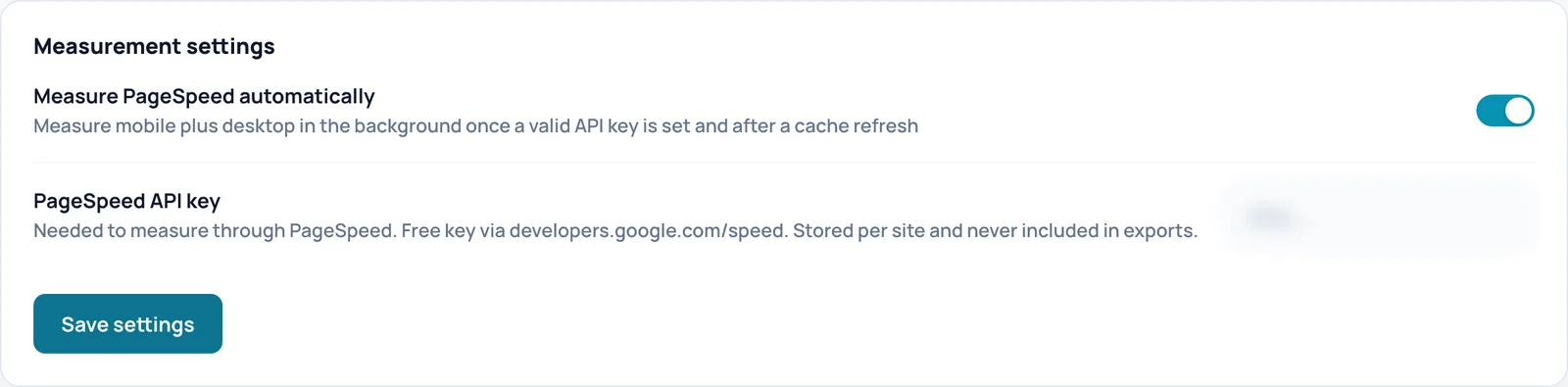
Measure PageSpeed automatically
- What it does
- Measures mobile and desktop in the background with Google PageSpeed, once a valid key is set and after the cache has been warmed again. This keeps your score history up to date without you pressing a button.
- When to switch it on or off
- Leave it on if you want to follow your scores. Switch it off if you need your PageSpeed quota for something else or do not want to send your site address to Google.
- Requirements
- A PageSpeed API key (below), a site that is reachable from the internet and working scheduled tasks (WP-Cron). Management and new optimizations need a valid licence or the 14-day grace period.
- How to check the effect
- After saving, the page reloads with a notice at the top and Spark rebuilds the cache in the background. The switch keeps its new state. New measurements show up later with the scores.
- Watch out
- Every measurement uses quota from your Google key and sends your site address to Google.
- How to undo
- Switch it off and click Save settings.
- Technical name
psi_auto_scan
PageSpeed API key
- What it does
- This is where you enter your own Google PageSpeed Insights key. Without your own key your site shares an anonymous limit at Google that is nearly always used up, so the key is needed to measure through PageSpeed.
- Requirements
- A free key via developers.google.com/speed.
- How to check the effect
- After saving, the field shows that a key is stored. If you leave the field empty afterwards, the stored key is kept. The key stays on this site and is never included in an export.
- Example
- You create a key in Google Cloud, paste it here and click Save settings. After the next cache build the first measurements appear.
- Watch out
- Like other WordPress settings, the key is stored unencrypted in the database.
- How to undo
- When a key is stored, a checkbox below the field lets you remove the stored key. Tick it and save.
Save settings
- What it does
- Saves the switch and the key on this card.
- How to check the effect
- After saving, the page reloads with a notice at the top and Spark rebuilds the cache in the background. The switch keeps its new state.
Claude API
Only needed if you want the AI hyper-optimization to run automatically through the Anthropic API. If you use the free route through your own Claude subscription, leave this card empty.
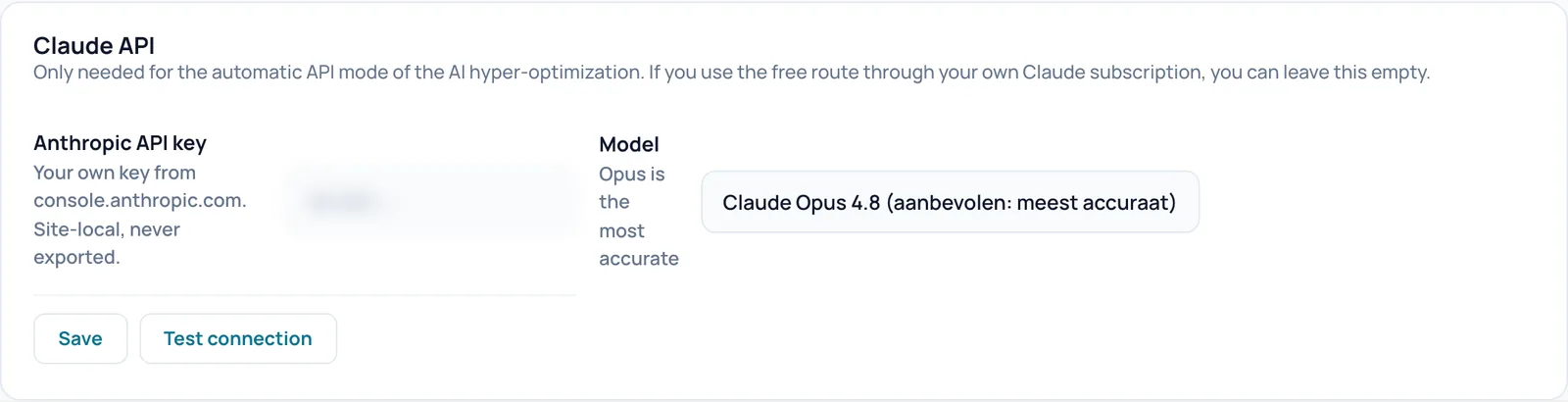
Anthropic API key
- What it does
- Your own key from console.anthropic.com. Spark only uses it in the automatic API mode of the AI hyper-optimization, to let Claude make a proposal on your behalf.
- Requirements
- An account with credit at console.anthropic.com.
- How to check the effect
- Click Test connection after saving. An empty field never wipes a stored key. The key stays on this site and is never exported.
- Watch out
- Calls through the API cost money on your Anthropic account. The key is stored unencrypted in the database.
- How to undo
- Enter a different key and click Save. This card has no button to remove the key.
Model
- What it does
- Chooses which Claude model makes the proposal: Claude Opus 4.8 (aanbevolen: meest accuraat), Claude Sonnet 5 (sneller, lagere kosten) or Claude Haiku 4.5 (goedkoopst). These option names are shown in Dutch in the English interface too: recommended and most accurate, faster and lower cost, and cheapest.
- When to switch it on or off
- Keep Opus for the most accurate result. Pick a cheaper model when cost matters more.
- How to check the effect
- After Save your choice stays selected. Test connection names the model in its notice.
- Watch out
- A cheaper model may produce less precise exclusion lists.
- How to undo
- Pick another model and click Save.
Save
- What it does
- Saves the key and the model on this card.
- How to check the effect
- After the click the page reloads with a notice at the top that says what happened.
Test connection
- What it does
- Sends a very small test request to the Anthropic API to check that the key and model work.
- Requirements
- A stored key. If you just entered a new key, click Save first and test afterwards.
- How to check the effect
- The notice at the top says the connection works, naming the model, or gives the reason it failed.
- Watch out
- The test costs a negligible number of tokens.
Preset
Spark recognises from your active plugins and theme which builder and shop you use, and has a tuned preset for that. Site-specific and server-specific values never travel along.
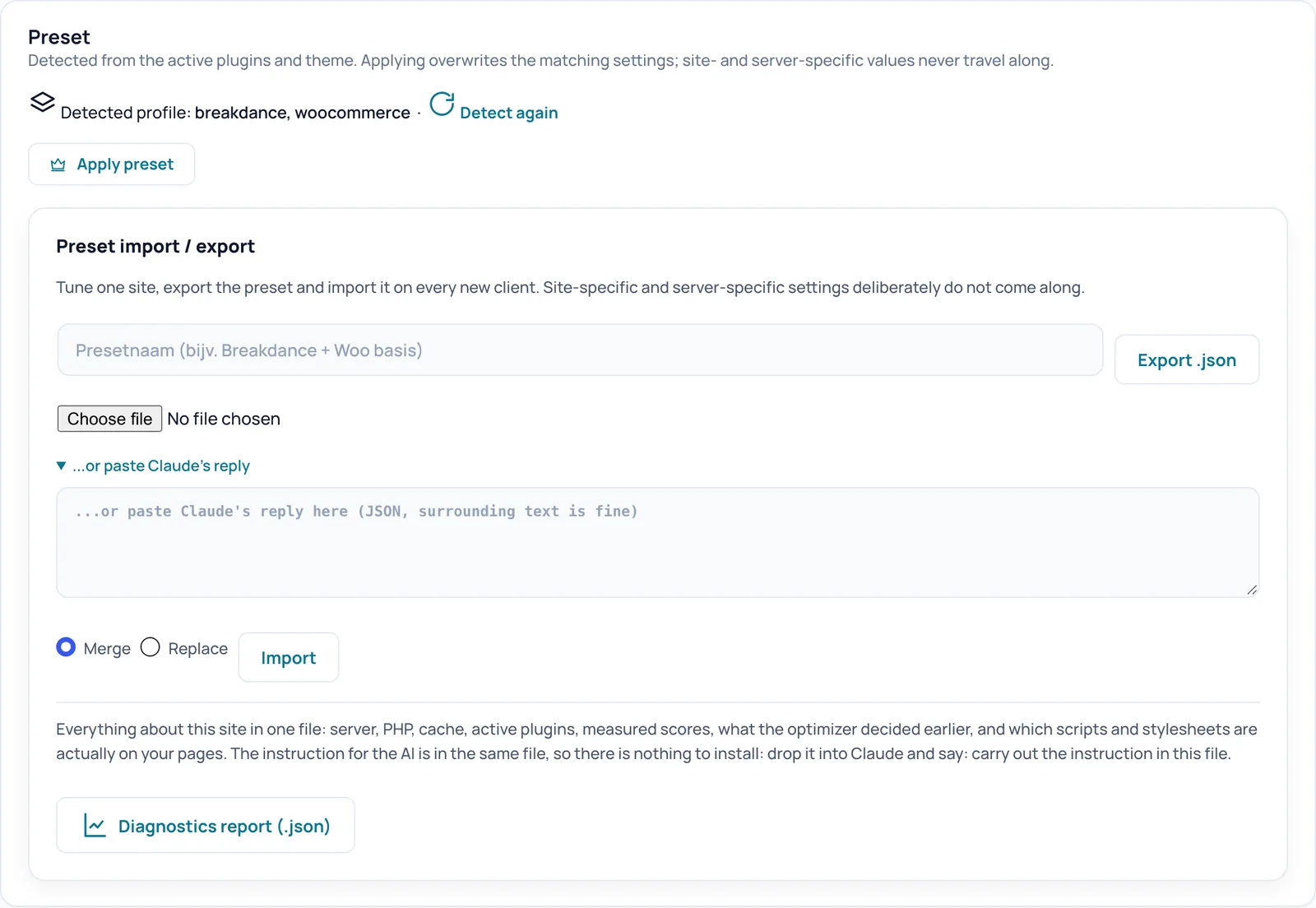
Detected profile and Detect again
- What it does
- Shows which parts Spark recognised on your site, for example breakdance and woocommerce. If Spark recognises nothing, it says so. Detect again reloads the page; recognition always happens live.
- How to check the effect
- You see the same profile on the Overview and Optimization screens.
- Example
- You install WooCommerce on a Breakdance site. After Detect again it reads breakdance, woocommerce.
Apply preset
- What it does
- Adds the tuned lists for the recognised builder and shop to your settings: which scripts must not be delayed, which CSS must always stay and which images must not be lazy-loaded. This keeps menus, sliders and the mini cart working. Spark already does this once by itself at activation.
- When to use it
- After you added a different builder or a shop, or when you want to top up your lists with the standard values.
- How to check the effect
- You first confirm a dialog. Then the notice at the top names the profile that was applied. You see the topped-up lists on the Optimization screen.
- Watch out
- The confirmation dialog warns that matching settings are overwritten.
- How to undo
- There is no button to undo this. Remove added entries by hand on the Optimization screen, or export your settings first so you can restore them.
Preset import / export
Tune one site, export the settings and import them on the next site. Site-specific and server-specific settings deliberately do not come along. At the bottom you can also download the diagnostics report for Claude.
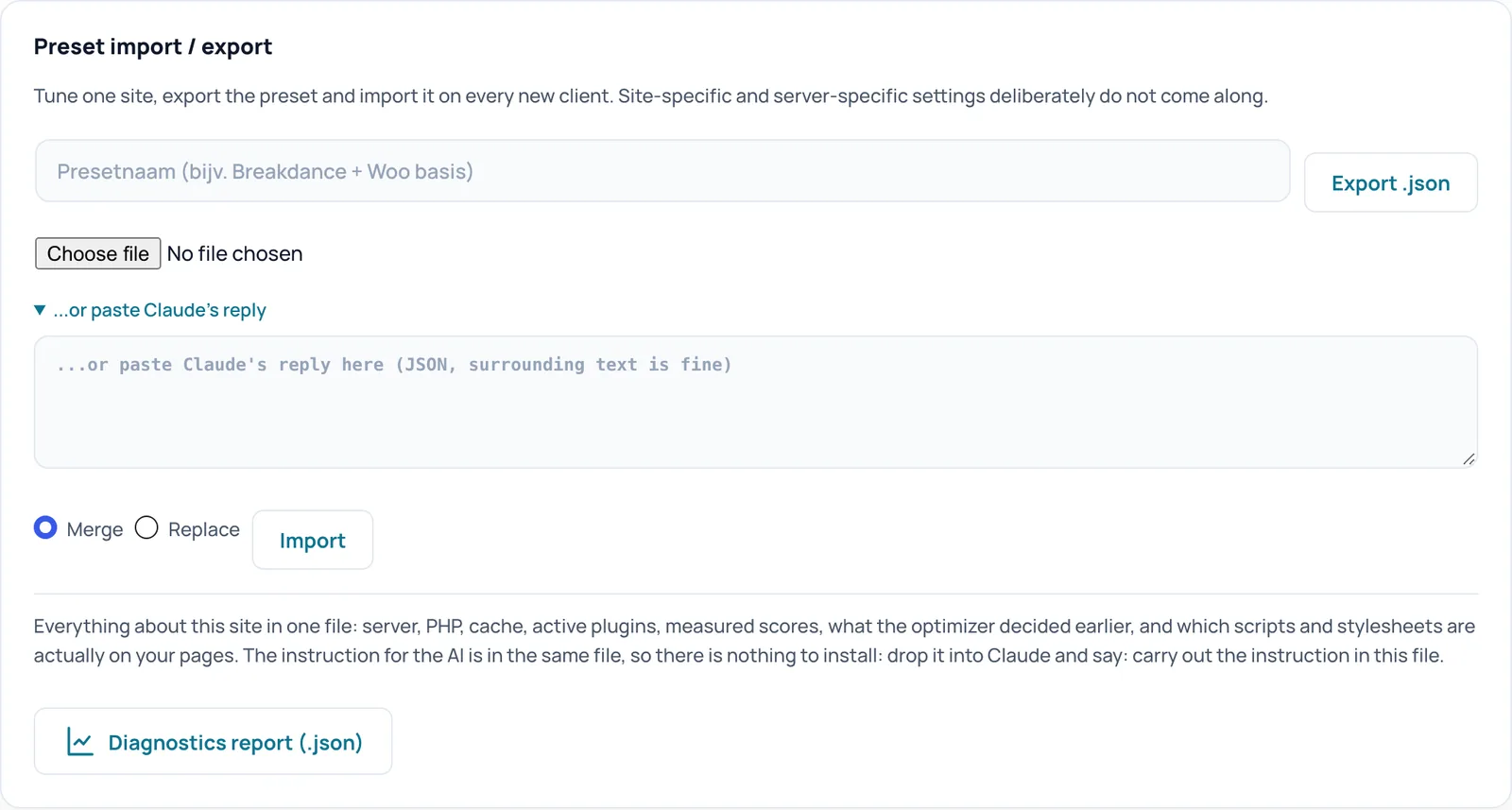
Export .json
- What it does
- Downloads a JSON file with your Spark settings, without site-specific and server-specific values. You can name the preset in the field before it; if you leave it empty, it gets a name with the date.
- When to use it
- Before big changes (as a backup), or to use a tuned site as the starting point for a new client.
- How to check the effect
- Your browser downloads a .json file with the site name and date in the file name.
- Watch out
- The file contains your exclusion lists and your domain name.
Import
- What it does
- Reads settings from a chosen .json file or from pasted text under ...or paste Claude's reply. Spark picks the settings out of the text itself, even when there is explanation around it. Settings that may not be imported are left out.
- When to use it
- To take over a preset from another site, or the proposal Claude made from the diagnostics report.
- How to check the effect
- After the click the page reloads with a notice at the top that says what happened. If the import switches on risky options, they are listed in a warning.
- Example
- You drop the diagnostics report into Claude, paste the reply here, choose Merge and click Import.
- How to undo
- There is no automatic undo button. So export your current settings first and import them back if needed.
Merge
- What it does
- Keeps your current settings and only overwrites what is in the file. Lists are topped up instead of replaced.
- When to switch it on or off
- The safe choice for almost every import.
Replace
- What it does
- First resets everything to the defaults (except the site-specific and server-specific settings of this site) and then applies the file.
- When to switch it on or off
- Only when you deliberately want a clean slate based on the file.
- Watch out
- Your own adjustments are lost.
Diagnostics report (.json)
- What it does
- Downloads one file with everything about this site: server, PHP, cache, active plugins, measured scores, earlier optimizer decisions and the scripts and stylesheets that are really on your pages. The instruction for the AI is in the same file, so there is nothing to install.
- When to use it
- When you want Claude to take a look: drop the file into Claude and say: carry out the instruction in this file.
- Requirements
- A valid licence or the 14-day grace period.
- How to check the effect
- Your browser downloads a .json file. The same download is also on Diagnostics, Report.
- Watch out
- The report describes your site and server in detail. Only share it with people you trust.
Memory
This card is inside the collapsible block Server advanced; click its title to open it. PHP memory is a limit per request. Spark checks its own heavy tasks, such as warming the cache, against that limit and stops a batch in time, so warming never causes a memory error.
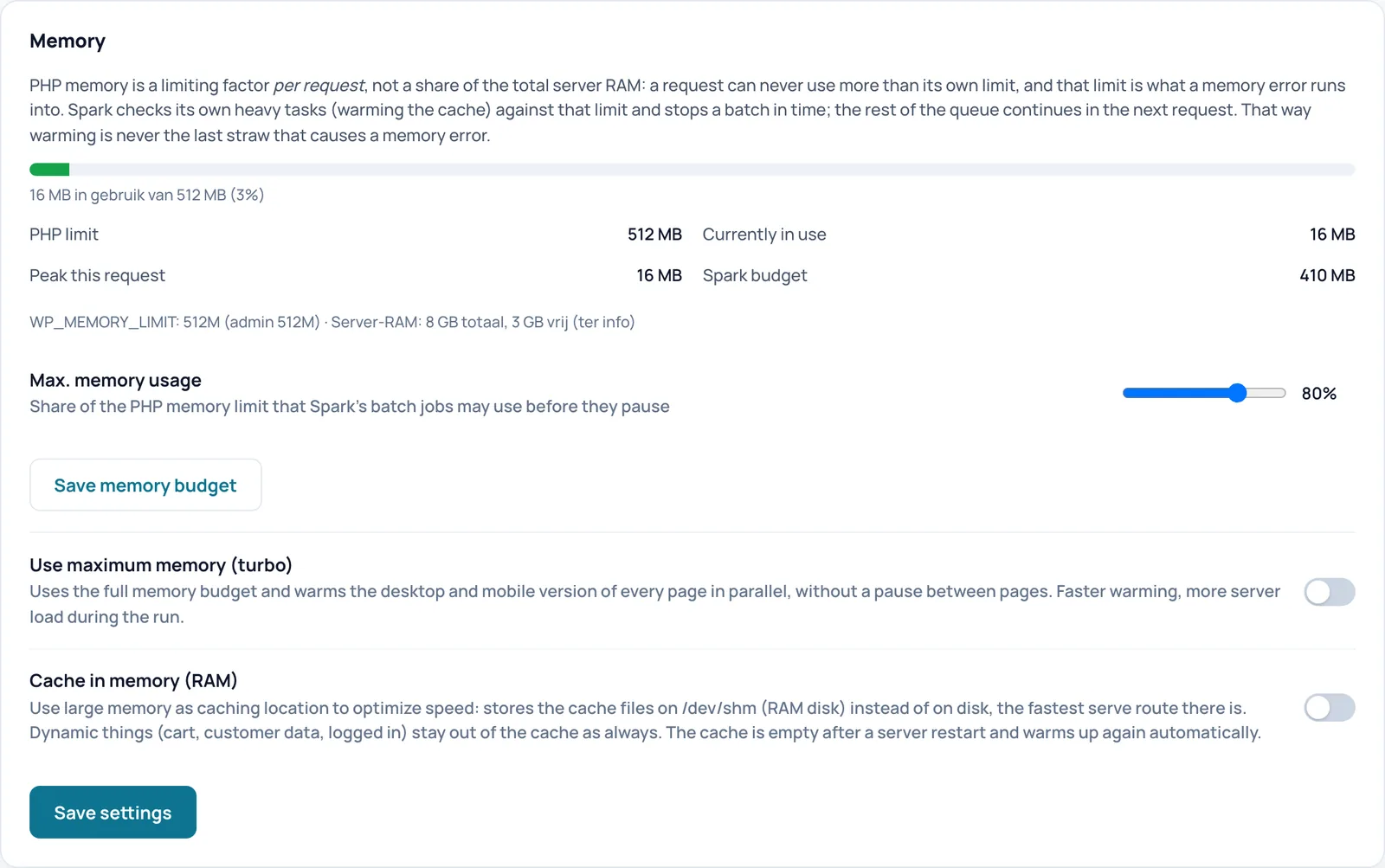
Memory figures: PHP limit, Currently in use, Peak this request, Spark budget
- What it does
- Read-only figures. The bar and figures show the PHP memory limit per request, current use, the peak of this request and the Spark budget: the share of the limit Spark may use (on the test site 80 percent of 512 MB, so 410 MB). The line below shows WP_MEMORY_LIMIT and, for information, the total and free memory of the server.
- How to check the effect
- If the limit is below 256 MB, the card shows a yellow tip. In the English interface the bar text and the server line are partly in Dutch.
Max. memory usage
- What it does
- A slider from 40 to 95 percent, in steps of 5. Sets how much of the PHP memory limit Spark's batch jobs (such as cache warming) may use before they pause and continue in the next request.
- When to switch it on or off
- Lower it if you see memory errors during warming. Raise it if there is plenty of memory and you want faster warming.
- How to check the effect
- Click Save memory budget; the notice names the new percentage and the Spark budget changes with it.
- Watch out
- A low value makes warming slower.
- How to undo
- Move the slider back to 80 percent and save.
Save memory budget
- What it does
- Saves only the slider position.
- How to check the effect
- After the click the page reloads with a notice at the top that says what happened.
Use maximum memory (turbo)
- What it does
- Uses the full memory budget and warms the desktop and mobile version of every page at the same time, without a pause between pages.
- When to switch it on or off
- On for a fast first build on a strong server. Off on shared or tight hosting.
- How to check the effect
- After saving, the page reloads with a notice at the top and Spark rebuilds the cache in the background. The switch keeps its new state.
- Watch out
- More server load while warming runs.
- How to undo
- Switch it off and click Save settings.
- Technical name
warm_turbo
Cache in memory (RAM)
- What it does
- Stores the cache files on /dev/shm, a disk in working memory, instead of on the normal disk. That is the fastest way to serve pages. Cart, customer data and logged-in visitors stay out of the cache as always.
- When to switch it on or off
- On for a server with plenty of memory. Off when memory is tight.
- Requirements
- A writable /dev/shm on the server. Not available on multisite. If /dev/shm is missing, Spark shows a yellow notice and the cache stays on disk.
- How to check the effect
- After saving, the page reloads with a notice at the top and Spark rebuilds the cache in the background. The switch keeps its new state. When it is active, the card shows how much memory the cache uses.
- Watch out
- After a server restart the cache is empty; it then warms up again by itself.
- How to undo
- Switch it off and click Save settings.
- Technical name
ram_cache
Save settings
- What it does
- Saves the two switches turbo and RAM cache.
- How to check the effect
- After saving, the page reloads with a notice at the top and Spark rebuilds the cache in the background. The switch keeps its new state.
Varnish
This card is also inside the Server advanced block. If Varnish runs in front of your web server, it serves pages from memory before Apache even sees them. Spark then has to forward its clear actions to Varnish, otherwise old HTML stays there.
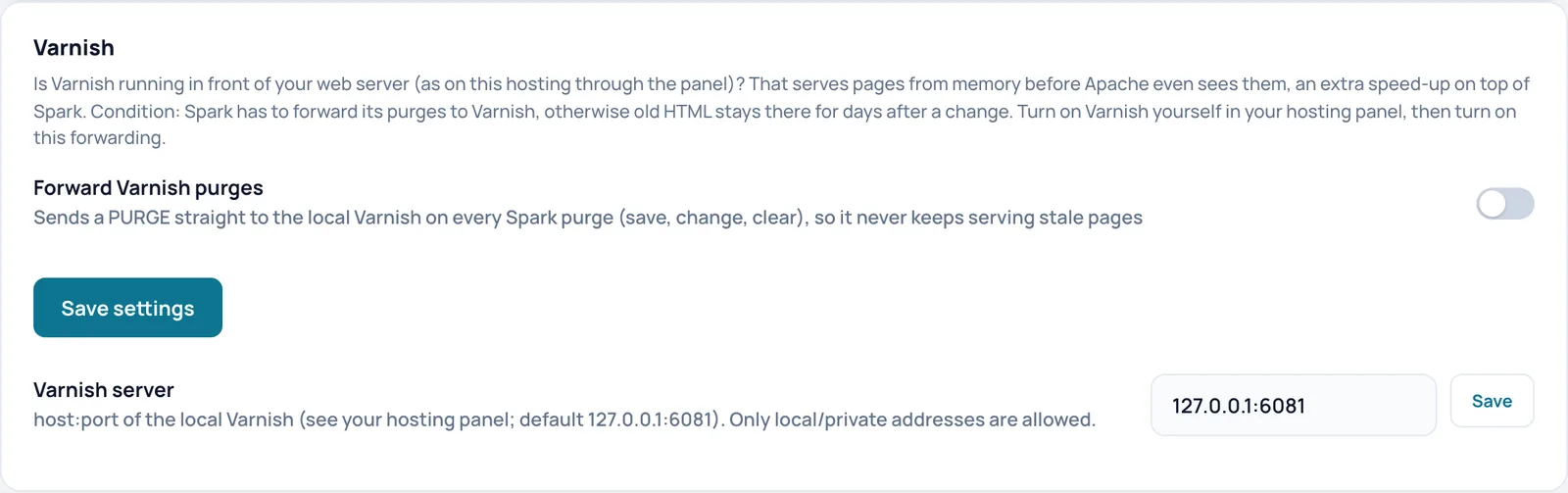
Forward Varnish purges
- What it does
- Sends a PURGE command straight to the local Varnish every time Spark clears the cache (save, change, clear). A purge is a command to throw away a stored page. That way Varnish never serves stale pages.
- When to switch it on or off
- On as soon as Varnish runs on your hosting. Off when there is no Varnish.
- Requirements
- You switch Varnish on yourself in your hosting panel. Also enter the correct address under Varnish server.
- How to check the effect
- After saving, the page reloads with a notice at the top and Spark rebuilds the cache in the background. The switch keeps its new state. Then change a page and check that the new version is visible right away.
- Watch out
- Without forwarding, Varnish may show old HTML for days after a change.
- How to undo
- Switch it off and click Save settings.
- Technical name
varnish_purge
Save settings
- What it does
- Saves the Forward Varnish purges switch.
- How to check the effect
- After saving, the page reloads with a notice at the top and Spark rebuilds the cache in the background. The switch keeps its new state.
Varnish server with Save
- What it does
- The address of the local Varnish as host:port. The Save button next to it stores it. Only local or private addresses are accepted, so Spark never sends requests to arbitrary outside servers.
- Requirements
- The address from your hosting panel.
- How to check the effect
- After saving, the address is in the field. If it is not a local or private address, forwarding does nothing and Spark shows a yellow notice.
- Example
- 127.0.0.1:6081
- How to undo
- Enter the old address and click Save.
- Technical name
varnish_server
Database cleanup
Part of the Tools card (database maintenance). Spark first counts what can be cleaned up and only cleans up when you press the button. Choose per type what you want to clean up.
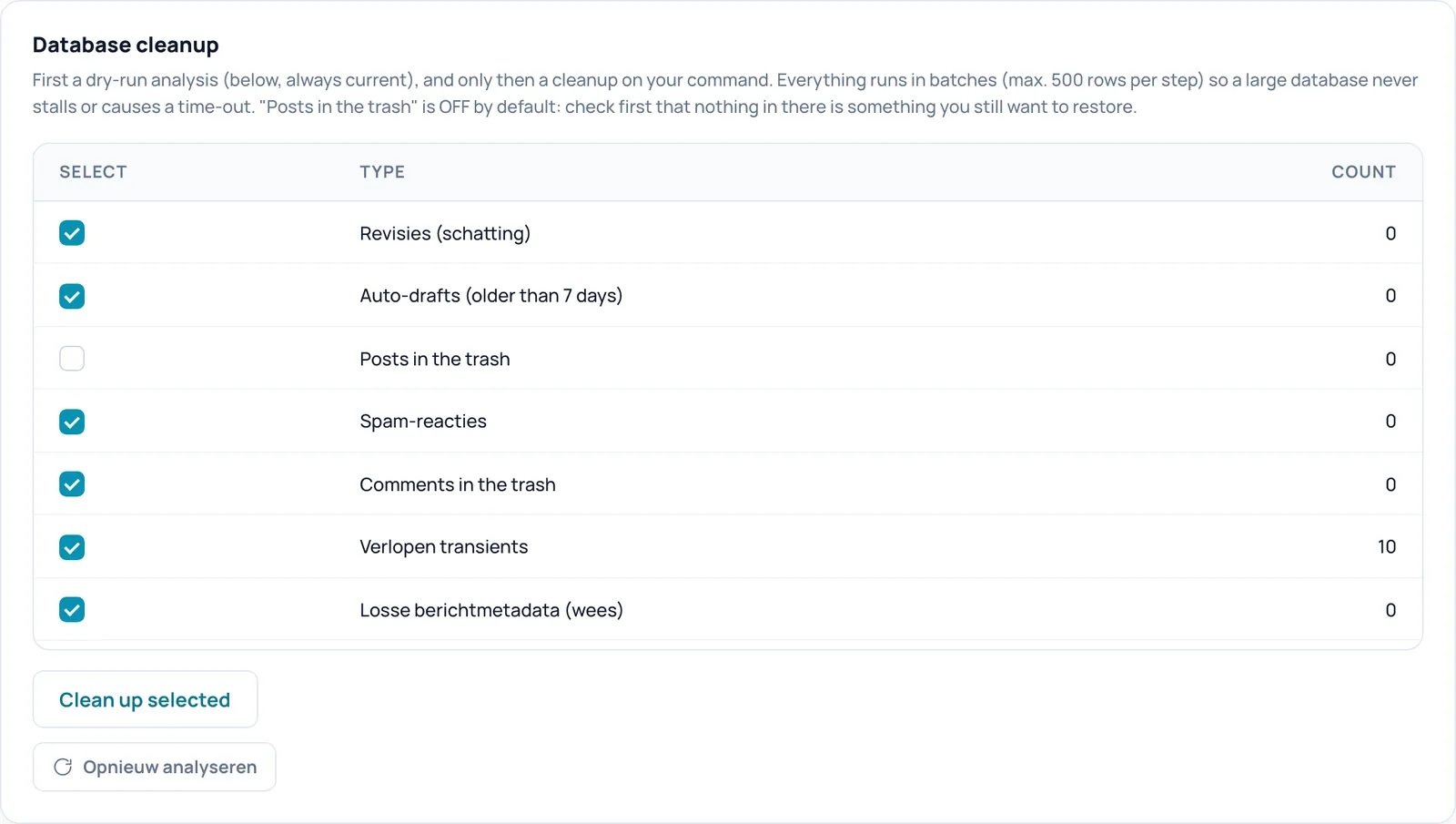
Revisies (schatting)
- What it does
- Old versions of posts and pages (the label means revisions, estimate), beyond the number you keep under Revisions to keep per post. The count is an estimate. The number in the COUNT column is always current.
- How to check the effect
- Tick it and click Clean up selected; afterwards the count is 0.
- Watch out
- Deleting is permanent, there is no trash. The weekly cleanup always includes this type, even when the box is unticked.
- How to undo
- Cannot be undone: deleted data is gone for good. Make a database backup first.
Auto-drafts (older than 7 days)
- What it does
- Drafts WordPress creates automatically that are older than 7 days. The number in the COUNT column is always current.
- How to check the effect
- Tick it and click Clean up selected; afterwards the count is 0.
- Watch out
- Deleting is permanent, there is no trash. The weekly cleanup always includes this type, even when the box is unticked.
- How to undo
- Cannot be undone: deleted data is gone for good. Make a database backup first.
Posts in the trash
- What it does
- All posts and pages in the trash are permanently deleted. The number in the COUNT column is always current.
- When to switch it on or off
- Off by default. Only tick it when you are sure you do not want to restore anything from the trash.
- How to check the effect
- Tick it and click Clean up selected; afterwards the count is 0.
- Watch out
- Deleting is permanent, there is no trash. The weekly cleanup always includes this type, even when the box is unticked.
- How to undo
- Cannot be undone: deleted data is gone for good. Make a database backup first.
Spam-reacties
- What it does
- Comments marked as spam (the label means spam comments). The number in the COUNT column is always current.
- How to check the effect
- Tick it and click Clean up selected; afterwards the count is 0.
- Watch out
- Deleting is permanent, there is no trash. The weekly cleanup always includes this type, even when the box is unticked.
- How to undo
- Cannot be undone: deleted data is gone for good. Make a database backup first.
Comments in the trash
- What it does
- Comments in the trash. The number in the COUNT column is always current.
- How to check the effect
- Tick it and click Clean up selected; afterwards the count is 0.
- Watch out
- Deleting is permanent, there is no trash. The weekly cleanup always includes this type, even when the box is unticked.
- How to undo
- Cannot be undone: deleted data is gone for good. Make a database backup first.
Verlopen transients
- What it does
- Expired transients (the label means expired transients): temporary data plugins keep in the database whose lifetime has passed. The number in the COUNT column is always current.
- How to check the effect
- Tick it and click Clean up selected; afterwards the count is 0.
- Watch out
- Deleting is permanent, there is no trash. The weekly cleanup always includes this type, even when the box is unticked.
- How to undo
- Cannot be undone: deleted data is gone for good. Make a database backup first.
Losse berichtmetadata (wees)
- What it does
- Extra data of posts that no longer exist (the label means orphaned post metadata). The number in the COUNT column is always current.
- How to check the effect
- Tick it and click Clean up selected; afterwards the count is 0.
- Watch out
- Deleting is permanent, there is no trash. The weekly cleanup always includes this type, even when the box is unticked.
- How to undo
- Cannot be undone: deleted data is gone for good. Make a database backup first.
Losse reactiemetadata (wees)
- What it does
- Extra data of comments that no longer exist (orphaned comment metadata). The number in the COUNT column is always current.
- How to check the effect
- Tick it and click Clean up selected; afterwards the count is 0.
- Watch out
- Deleting is permanent, there is no trash. The weekly cleanup always includes this type, even when the box is unticked.
- How to undo
- Cannot be undone: deleted data is gone for good. Make a database backup first.
Losse termmetadata (wees)
- What it does
- Extra data of categories, tags and other terms that no longer exist (orphaned term metadata). The number in the COUNT column is always current.
- How to check the effect
- Tick it and click Clean up selected; afterwards the count is 0.
- Watch out
- Deleting is permanent, there is no trash. The weekly cleanup always includes this type, even when the box is unticked.
- How to undo
- Cannot be undone: deleted data is gone for good. Make a database backup first.
Clean up selected
- What it does
- Cleans up the ticked types, in steps of at most 500 rows, so a large database does not stall or time out.
- How to check the effect
- The notice says how many items were cleaned up. If the time for one click ran out, the notice says to click again for the rest. Afterwards an overview of the last cleanup per type appears.
- Example
- After removing an old plugin there are 1,200 orphaned post metadata rows. Click Clean up selected until the count reads 0.
- Watch out
- Deleting is permanent.
- How to undo
- Cannot be undone: deleted data is gone for good. Make a database backup first.
Opnieuw analyseren
- What it does
- Reloads the page with fresh counts (the label means analyse again; it is shown in Dutch in the English interface). Nothing is deleted. The counts are recounted on every page view anyway.
- How to check the effect
- The notice at the top says the analysis was updated.
Schedule
Let the database be cleaned up automatically every week and set how many revisions are always kept.
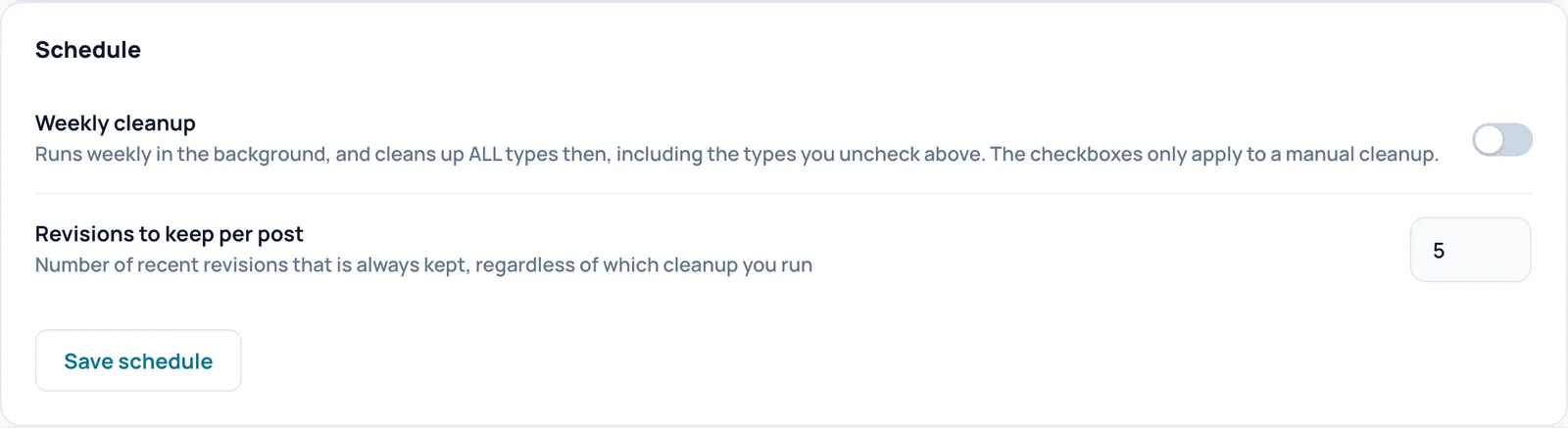
Weekly cleanup
- What it does
- Cleans up the database in the background every week. The first round runs about an hour after saving.
- When to switch it on or off
- On if you do not want to forget maintenance and nobody keeps things in the trash to restore later.
- Requirements
- Working scheduled tasks (WP-Cron or a server cron).
- How to check the effect
- The notice after Save schedule says whether the weekly cleanup was switched on or off.
- Watch out
- The weekly cleanup cleans up ALL types, including the ones you unticked in the table, so also posts and comments in the trash. The ticks only apply to a manual cleanup.
- How to undo
- Switch it off and click Save schedule. What was already cleaned up does not come back.
- Technical name
db_cleanup_schedule
Revisions to keep per post
- What it does
- The number of recent revisions per post that every cleanup (manual and weekly) always keeps. Allowed is 1 to 50.
- When to switch it on or off
- Higher if editors often restore an older version, lower for a smaller database.
- How to check the effect
- After Save schedule the new number is in the field, and the estimate at Revisies (schatting) adjusts.
- How to undo
- Enter 5 and click Save schedule.
- Technical name
db_revisions_keep
Save schedule
- What it does
- Saves the weekly cleanup and the number of revisions to keep.
- How to check the effect
- After the click the page reloads with a notice at the top that says what happened.
Admin settings
Part of the Faster admin card, which makes wp-admin faster, separate from the visitor cache. By default Spark only measures and advises; nothing changes until you use a switch or button here.
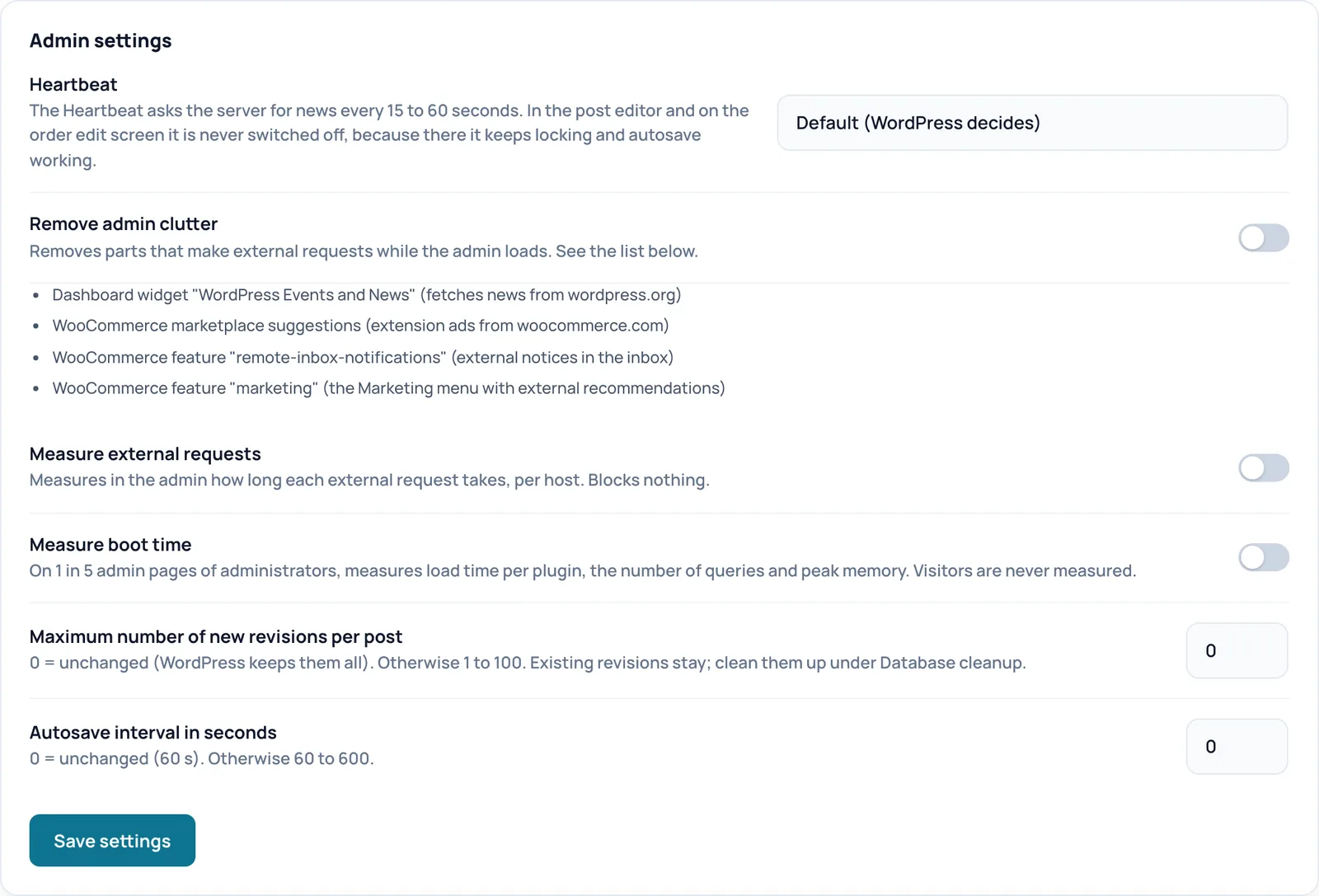
Heartbeat
- What it does
- The Heartbeat is a signal with which every open admin tab asks the server for news every 15 to 60 seconds. Choose Default (WordPress decides), Calm: every 60 s in the admin, off on the front end for logged-in users or Minimal: off in the admin, except editor and order screen (60 s).
- When to switch it on or off
- Calm or Minimal when your server slows down because many admin tabs are open.
- How to check the effect
- After saving, the page reloads with a notice at the top and Spark rebuilds the cache in the background. The switch keeps its new state.
- Example
- On a busy shop where staff keep many admin tabs open, choose Calm: every 60 s in the admin, off on the front end for logged-in users.
- Watch out
- In the post editor and on the order edit screen the Heartbeat is never switched off, so locking and autosave keep working. With Minimal, parts of other plugins that update live on the dashboard may stop updating.
- How to undo
- Choose Default (WordPress decides) and save.
- Technical name
admin_heartbeat
Remove admin clutter
- What it does
- Removes four parts that make external requests while the admin loads: the dashboard widget with WordPress events and news, the WooCommerce marketplace suggestions, the WooCommerce feature remote-inbox-notifications and the WooCommerce feature marketing. They are listed under the switch.
- When to switch it on or off
- On when the dashboard or the WooCommerce screens open slowly.
- How to check the effect
- After saving, the page reloads with a notice at the top and Spark rebuilds the cache in the background. The switch keeps its new state. On the dashboard the news widget is gone, and in WooCommerce the Marketing menu.
- Watch out
- You lose the news widget and WooCommerce's notices and recommendations.
- How to undo
- Switch it off and click Save settings.
- Technical name
admin_ballast
Measure external requests
- What it does
- Measures in the admin how long each request to another server takes, per host. Nothing is blocked.
- When to switch it on or off
- On to find which plugin slows every admin page with a slow update or licence check. Off when you are done looking.
- How to check the effect
- After saving, a block appears in this card with the number of requests and the times per host, plus a button to clear the measurements.
- Watch out
- A little extra work on every admin request.
- How to undo
- Switch it off, save and clear the measurements.
- Technical name
admin_http_monitor
Measure boot time
- What it does
- On 1 in 5 admin pages of administrators, measures load time per plugin, the number of database queries and peak memory. Visitors are never measured.
- When to switch it on or off
- On when wp-admin starts slowly and you want to know which plugin causes it.
- How to check the effect
- After saving and some clicking around the admin, a block appears in this card with times per admin page and per plugin, plus a button to clear the measurements.
- Watch out
- The time per plugin is an approximation.
- How to undo
- Switch it off, save and clear the measurements.
- Technical name
admin_profiel
Maximum number of new revisions per post
- What it does
- Limits how many revisions WordPress keeps per post from now on. 0 means unchanged (WordPress keeps them all); otherwise 1 to 100.
- When to switch it on or off
- Set it when your posts table keeps growing with hundreds of revisions.
- How to check the effect
- Existing revisions stay; you clean those up under Database cleanup. If wp-config.php already sets its own value, that one wins and the card says so.
- Watch out
- Less edit history to fall back on.
- How to undo
- Enter 0 and save.
- Technical name
revisions_max
Autosave interval in seconds
- What it does
- How often the editor automatically saves an interim version. 0 means unchanged (60 seconds); otherwise 60 to 600.
- When to switch it on or off
- Higher for fewer requests while writing.
- How to check the effect
- If wp-config.php or another plugin already sets a value, that one wins and the card says so.
- Watch out
- If your browser crashes, you lose more work.
- How to undo
- Enter 0 and save.
- Technical name
autosave_interval
Save settings
- What it does
- Saves all settings in this block.
- How to check the effect
- After saving, the page reloads with a notice at the top and Spark rebuilds the cache in the background. The switch keeps its new state.
Admin database
Analyse first (count only), clean up only on your command. Spark never deletes options and never pending or running scheduled actions.

Analyse
- What it does
- Counts what slows the admin down, without changing anything: the largest autoloaded options (data WordPress loads on every request), the scheduled actions and, with WooCommerce, the sessions.
- When to use it
- When wp-admin or WooCommerce feels slow and you want to know whether the database is the cause.
- How to check the effect
- The notice says the analysis was updated and nothing was changed. The results appear below, with a button per item to clean up yourself. Before Spark turns off autoloading of an option, it takes a snapshot so you can restore it.
WP-Cron
WordPress runs scheduled tasks during normal page visits. On a busy or heavy site a real server cron is faster and more reliable. This card gives you the lines for that.
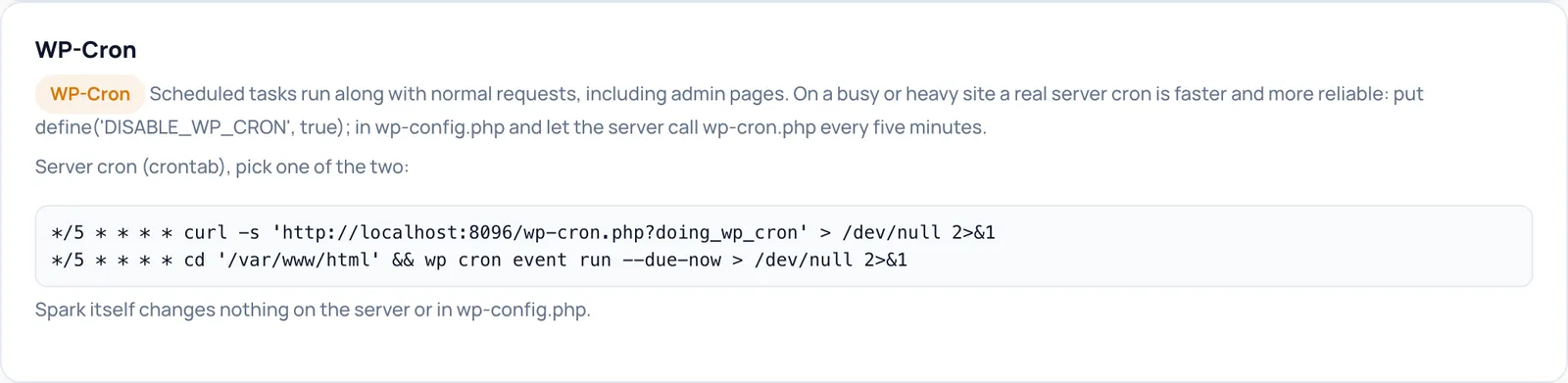
WP-Cron advice and Server cron (crontab), pick one of the two:
- What it does
- Read-only advice. Shows the WP-Cron state and two lines for a server cron (a task the server itself starts every five minutes): one with curl and one with WP-CLI. The lines already contain your site's address and folder.
- When to use it
- On a busy or heavy site, or when scheduled tasks fall behind.
- Requirements
- Access to crontab in your hosting panel or over SSH, and the line define('DISABLE_WP_CRON', true); in wp-config.php.
- How to check the effect
- After setting it up, this card shows that WP-Cron is disabled, and scheduled tasks no longer fall behind.
- Example
- */5 * * * * cd '/var/www/html' && wp cron event run --due-now > /dev/null 2>&1
- Watch out
- Spark itself changes nothing on the server or in wp-config.php. If you disable WP-Cron without a working server cron, scheduled tasks stop running.
- How to undo
- Remove the line from wp-config.php and delete the crontab line.
Image sizes
Every registered image size is an extra file on every upload. This analysis shows which sizes you really use.

Analyse sizes
- What it does
- Compares every registered size with the last 200 images and the last 500 posts and gives advice per size.
- When to use it
- When your uploads folder grows fast or uploads are slow.
- How to check the effect
- A table appears with, per size, the dimensions, how often it occurs in the sample, the number of posts referring to it and the advice.
- Watch out
- Advice only: Spark never switches a size off itself, and WooCommerce and Breakdance sizes are protected. A size without a reference in post content may still be used through srcset, the theme or a page builder.
Emergency stop
Switches off all caching and optimization for visitors. Only meant for troubleshooting.

Disable all caching
- What it does
- Switches off the cache and all optimizations for visitors and empties the cache immediately. Visitors then get your site as WordPress delivers it without Spark.
- When to use it
- When something seems wrong on your site and you want to quickly rule out Spark as the cause.
- How to check the effect
- You first confirm a dialog. Afterwards pages no longer come from the Spark cache. View the page in a private window: if the problem is still there, Spark is not the cause.
- Watch out
- Your site gets slower until you switch caching back on, and afterwards the cache has to be rebuilt. This is the only place where you switch caching and optimization off in one go.
- How to undo
- The same spot then shows a button to switch caching back on. It switches everything back on and rebuilds the cache.
License
Here you see whether your licence is valid, and you can check it again or release it on this site. Management and new optimizations need a valid licence or the 14-day grace period. This guide deliberately has no image of this card, because it shows licence details.
Licence status
- What it does
- Shows whether your licence is active, in the temporary grace period or not valid, with the expiry date. Below that are your masked key, your plan and the number of activations used.
- How to check the effect
- Spark checks the licence every day by itself. In the English interface the status line and some labels are shown in Dutch, for example Licentie actief (licence active).
- Watch out
- Do not share a screenshot of this card: it shows licence details.
Re-check
- What it does
- Asks the SparkCore shop right away whether your licence is valid, instead of waiting for the daily check.
- When to use it
- After renewing, or after a change in your shop account.
- How to check the effect
- The notice at the top says whether the licence is valid or not valid.
Deactivate
- What it does
- Releases the activation on this site, so you can use it on another site. After that, management and new optimizations are locked on this site.
- When to use it
- When you shut the site down or move it to a different domain.
- How to check the effect
- You first confirm a dialog. Afterwards the Spark Speed header shows that there is no active licence.
- Watch out
- If releasing fails right away, Spark safely tries again later.
- How to undo
- Activate the key again on the licence screen.
Updates
With a valid licence this site receives signed plugin updates from the SparkCore shop.
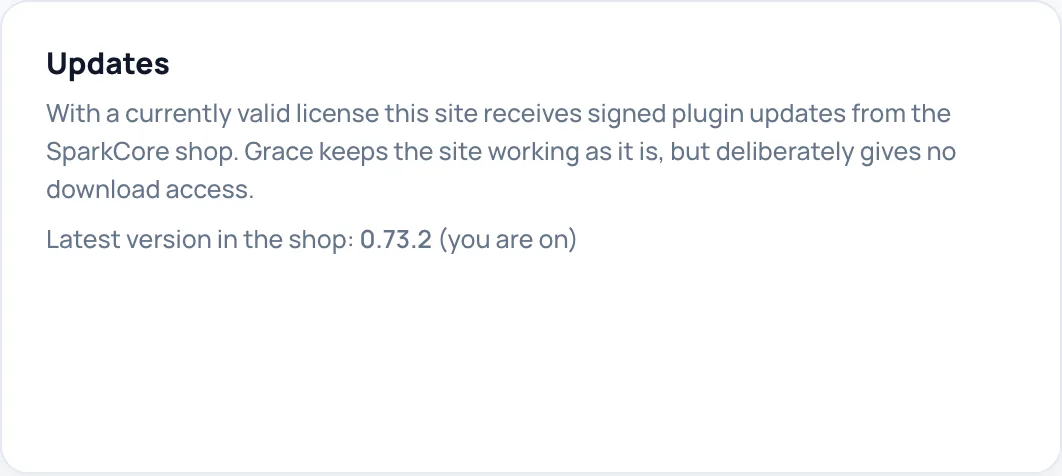
Update status
- What it does
- Read-only. Shows the latest version in the shop and whether an update is available or you are up to date. Signed updates arrive through the normal WordPress updates screen.
- Requirements
- A valid licence. During the grace period your site keeps working as it is, but you cannot download updates.
- How to check the effect
- On the test site it reads Latest version in the shop: 0.73.2 (you are on).
Unsure about a step? Revert, check your site and ask us through the contact page.
No Spark Speed yet? See what it does and what it costs.
Frequently asked questions
Use the Disable all caching button on the Emergency stop card. The cache is emptied immediately. In the same spot you switch caching back on afterwards.
The ticks in the table only apply to a manual cleanup. The weekly cleanup always includes every type, including the trash. If you do not want that, leave Weekly cleanup off.
No, only for the automatic API mode. You can also download the diagnostics report, drop it into Claude with your own Claude subscription and import the reply here.
No. The PageSpeed key and the Anthropic key stay on the site. Site-specific and server-specific settings deliberately do not travel along either.
In the collapsible Server advanced block on the Settings tab. Click its title to open it.